Browse documentation
Accounting
Settings > Finance > Accounting. Accounting decides when your fiscal year starts, how many days customers have to pay by default, and how an invoice can be split into several due dates.
Fiscal year
Choose the month in which your fiscal year starts. The periods on the dashboard follow this setting.
Default payment term
A number of days, from 0 to 365. Invunion uses it when an invoice arrives without a due date: the due date is the invoice date plus this term. It is also the starting value for new counterparties.
- A counterparty can have its own payment term. It takes priority over the default.
- A due date that is already on the invoice is never replaced.
Invoice schedule
By default an invoice has one due date, for the whole amount. An invoice schedule splits it into installments, each with its own share and its own due date. Use it when you bill in several payments, for example 30% at the start and 70% two months later.
A schedule is a template. Invunion copies its installments onto each new invoice, so editing a schedule never changes invoices that already exist.
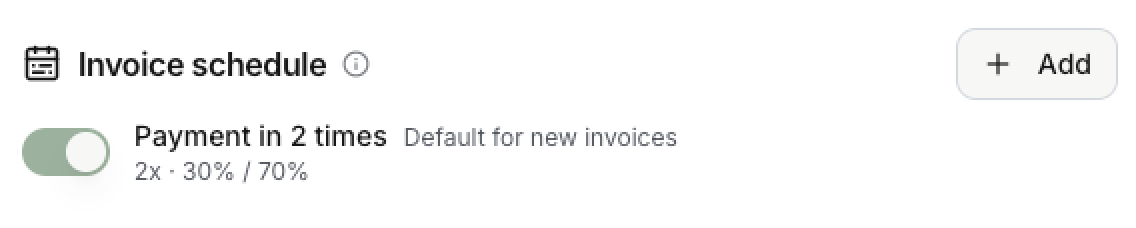
Each schedule is one line in the Invoice schedule card. It shows the name, the code, the split between installments, and a Default for new invoices label. The switch turns the schedule on or off. Add creates a new one.
Create a schedule
Select Add (or the edit action on an existing schedule). The form is called Edit schedule.
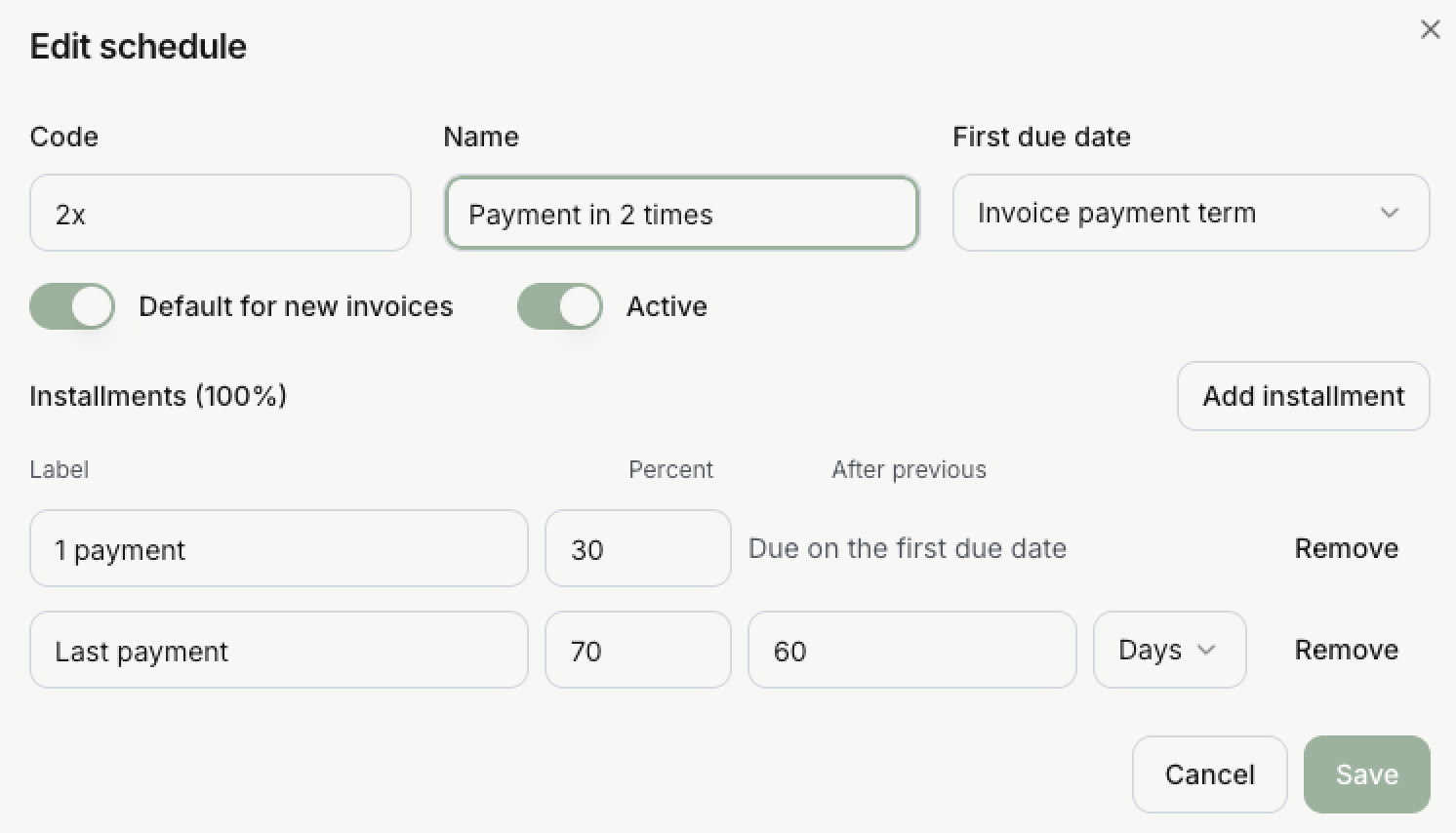
| Field | What it does |
|---|---|
| Code | A short identifier, unique in the Entity, for example 2x. Imports and the API use it to pick the schedule. |
| Name | A label for people, for example “Payment in 2 times”. |
| First due date | Where the first installment is counted from: the invoice payment term, or a fixed offset after the invoice date. |
| Default for new invoices | New invoices use this schedule when they do not name another one. Only one schedule can be the default. |
| Active | An inactive schedule cannot be chosen. |
| Installments | One line per payment. Each line has a label, a percent, and a gap after previous, in days (0 to 365) or months (0 to 36). The first line is due on the first due date. |
The percentages must add up to 100%. The title of the section shows the running total, and the last line takes the remainder. Add installment adds a line and Remove deletes it.
Example: pay in two times
An invoice of 1,000 EUR is dated 1 March. The Entity’s default payment term is 30 days. It uses the schedule from the screenshot above.
| Installment | Share | Due date | Amount |
|---|---|---|---|
| 1 payment | 30% | 31 March, the first due date | 300 EUR |
| Last payment | 70% | 60 days after the previous one, 30 May | 700 EUR |
How an invoice gets its installments
Every invoice has at least one installment. It takes them, in this order, from:
- The installments sent exactly with the invoice.
- A schedule chosen by its code.
- The default schedule, when the invoice asks for it.
- A single installment for the whole amount on the due date.
Payments are counted against the installments, oldest first. A payment can settle part of an invoice, and an invoice can be partly paid and overdue at the same time. When Invunion looks for matches, it also compares a payment with the next open installment, so a payment of exactly one installment can be recognized. See Match levels.
Limits to keep in mind
- An unknown or inactive schedule code makes that imported row fail.
- A new set of installments cannot be smaller than the amount already settled on the invoice.
- Settings belong to the Entity and affect every user in it.
Updated · View as Markdown