Browse documentation
Automatic statements
Developer > Import data > Automatic statements. Bank files arrive in Invunion by themselves. Invunion reads each file, adds its transactions, and runs matching, with no manual upload.
Delivery is over SFTP, a secure file transfer that most banks and ERP systems already support. It is set up with Invunion, not by yourself: you ask, and the team configures it with you.
How it works
- Select Contact support and tell us which bank, or which system, will send the files.
- Invunion creates the SFTP connection for your Entity. Either your bank or integrator deposits the files on Invunion, or Invunion fetches them from your bank’s SFTP server.
- Each new file is read, its transactions are added to the right company account, and matching runs on them.
- The result appears under Recent statement imports.
If you prefer to bring a file yourself, import it by hand instead. See Transactions.
What can arrive
| Files | Formats |
|---|---|
| Bank statements | camt.052, camt.053, camt.054, MT940, BAI2, or a ZIP of them |
| Issued invoices | UBL or CII XML, or a ZIP of them |
How a statement is read, and to which account it goes, is saved in Transaction import. How an invoice file is read is saved in Invoice import.
The buttons
| Button | What it does |
|---|---|
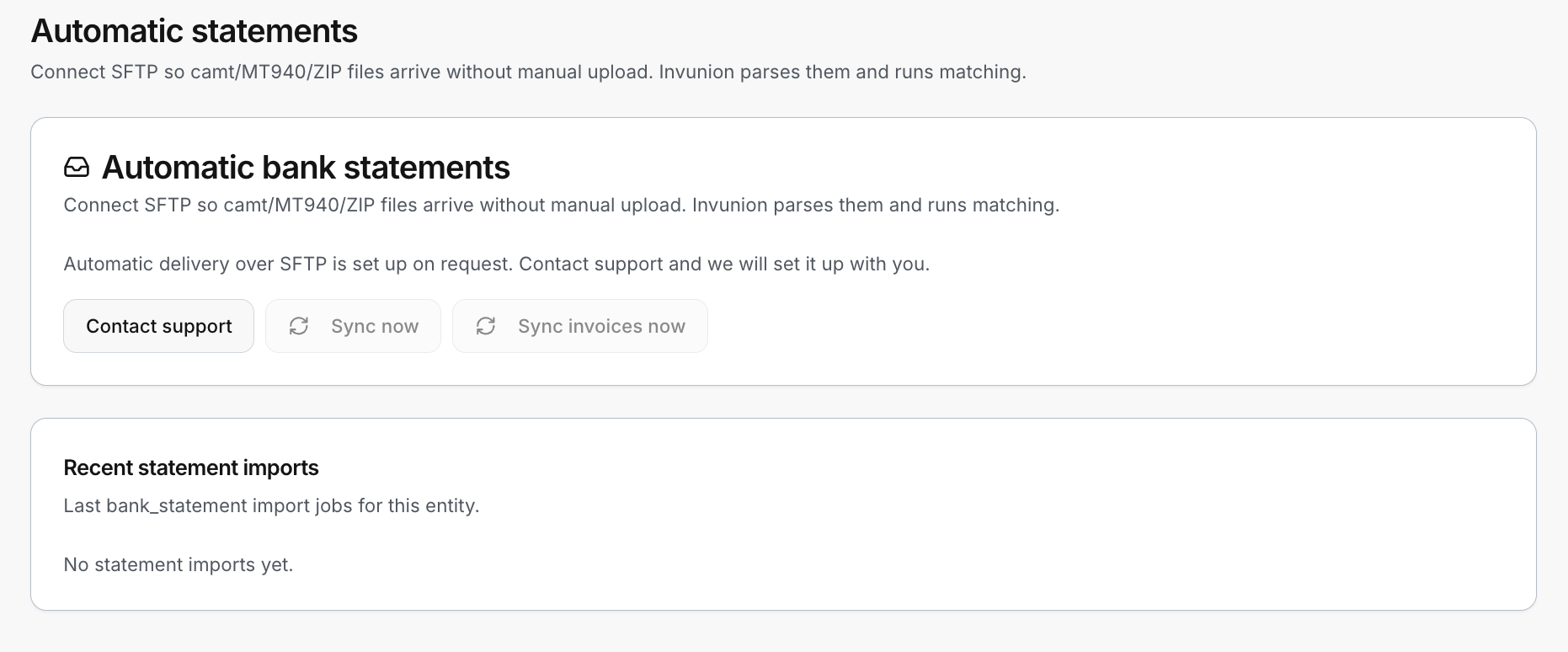
| Contact support | Opens a request so Invunion can set up or change the SFTP delivery. |
| Sync now | Looks for new bank statement files right away, instead of waiting. |
| Sync invoices now | Does the same for invoice files. |
Both sync buttons are greyed out until a connection exists, as in the screenshot above.
Recent statement imports
This card lists the latest bank statement imports of the Entity: the file, its status, the number of rows, and when it started. It reads No statement imports yet until the first file arrives. Use it to check that a file was received, and how many rows it contained.
Limits to keep in mind
- SFTP delivery is set up on request. There is nothing to configure on this page by yourself.
- Only the formats above are read. Excel workbooks and PDF statements are not accepted. Export to CSV and import it by hand.
- A file whose name does not match the SFTP file prefix of a mapping may be ignored, or go to an account only when it can be told apart. See Transaction import.
- The same Entity setup applies to the sandbox and production Entities separately.
Updated · View as Markdown