Browse documentation
Transactions
Transactions in the menu. A transaction is one movement of money in or out of your bank account: one line of your bank statement.
Invunion matches transactions to your invoices. That is how an invoice becomes paid.
How transactions work
Each transaction has three things:
- What moved: an amount, a currency, a date and a direction, Incoming or Outgoing.
- Who paid: a payment method, such as an IBAN, and the counterparty it belongs to.
- What it pays: the invoices it is matched to, and a status that says how much is matched. See Status and scope.
The Transactions list
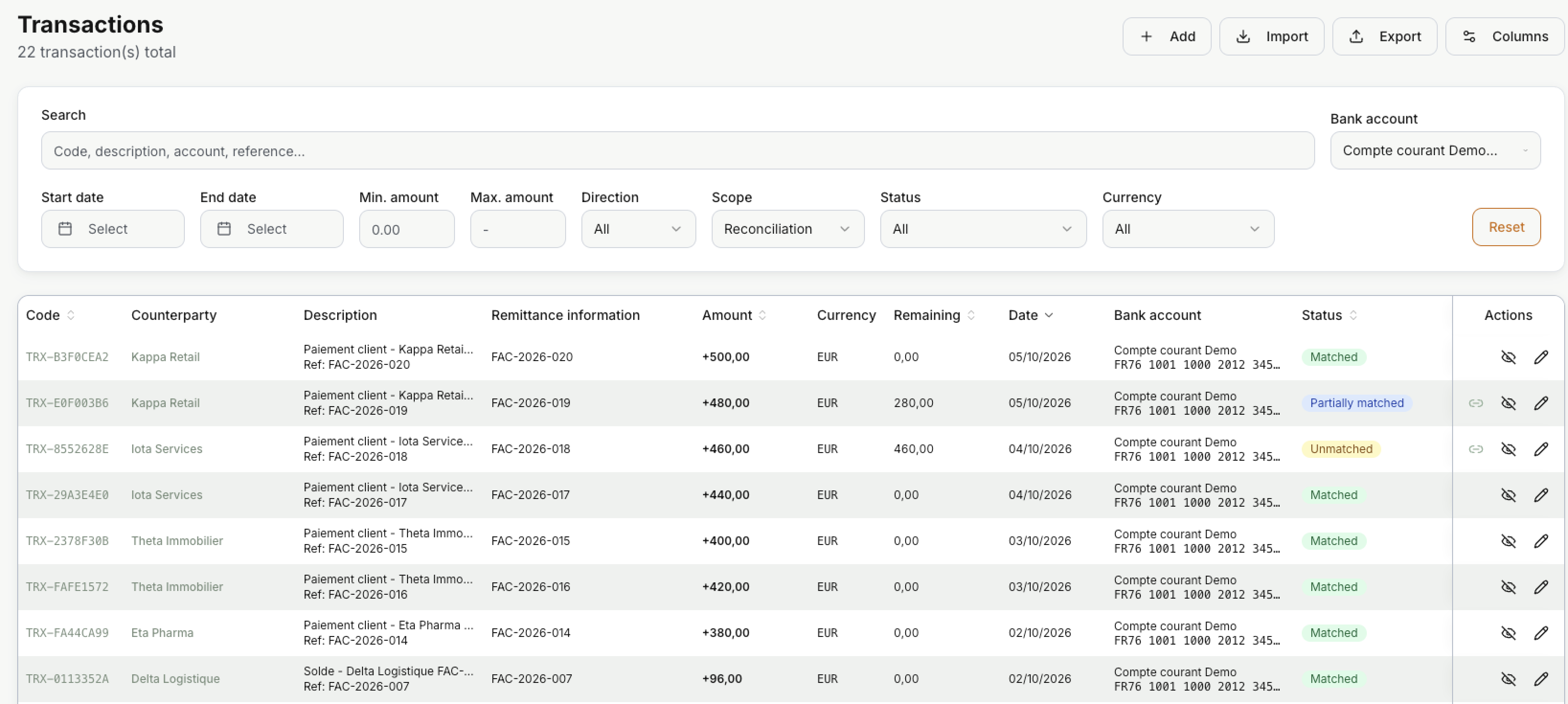
Each line is one transaction. The newest come first. The buttons at the top:
| Button | What it does |
|---|---|
| Add | Create one transaction by hand. |
| Import | Load a bank statement file. See Where transactions come from. |
| Export | Download the list as a CSV file, with the columns you see. |
| Columns | Show, hide or reorder columns. |
Search looks in the code, the description, the counterparty name and the external reference.
| Filter | What it does |
|---|---|
| Bank account | Only the lines of one of your own bank accounts. |
| Start date, End date | Only the lines between two dates. |
| Min. amount, Max. amount | Only the lines between two amounts. |
| Direction | Incoming or Outgoing. |
| Scope | Reconciliation (the default), Outside scope or All movements. See Scope. |
| Status | One status, or To match for all lines still waiting for a match. |
| Currency | Only one currency. |
Reset clears them all and goes back to Reconciliation.
Each line shows these columns by default:
| Column | What it shows |
|---|---|
| Code | The transaction code, for example TRX-0E35C4F5. Select it to open the transaction. |
| Counterparty | Who paid. Select the name to open the counterparty. If the bank wrote another name, it shows below. |
| Description | The text of the bank line, with Ref: and the external reference below. |
| Remittance information | The message the payer added, often an invoice number. |
| Amount | + for money in. − in red for money out. |
| Currency | The currency code, such as EUR. |
| Remaining | The part of the amount not matched yet. |
| Bank account | Your own account that received or sent the money, with its IBAN, masked. |
| Status | Where the line is in matching. See Status. |
| Date | The date of the transaction. |
With Columns you can add more, such as Direction, Type, Booking date, Value date, Allocated, Source or Metadata.
| Icon | What it does |
|---|---|
| Quick match. Opens a window with the open invoices of the counterparty, so you can match them. See Quick match. Shown only when there is still an amount to match. | |
| Ignore from reconciliation. Takes the line out of matching. If it was matched, Invunion asks first, then removes the matches. | |
| Include in reconciliation. Brings an ignored line back into matching. | |
| Opens the transaction in the edit panel. |
You cannot delete a transaction. To take it out of matching, ignore it instead.
Quick match
Quick match is the fastest way to match a line by hand.
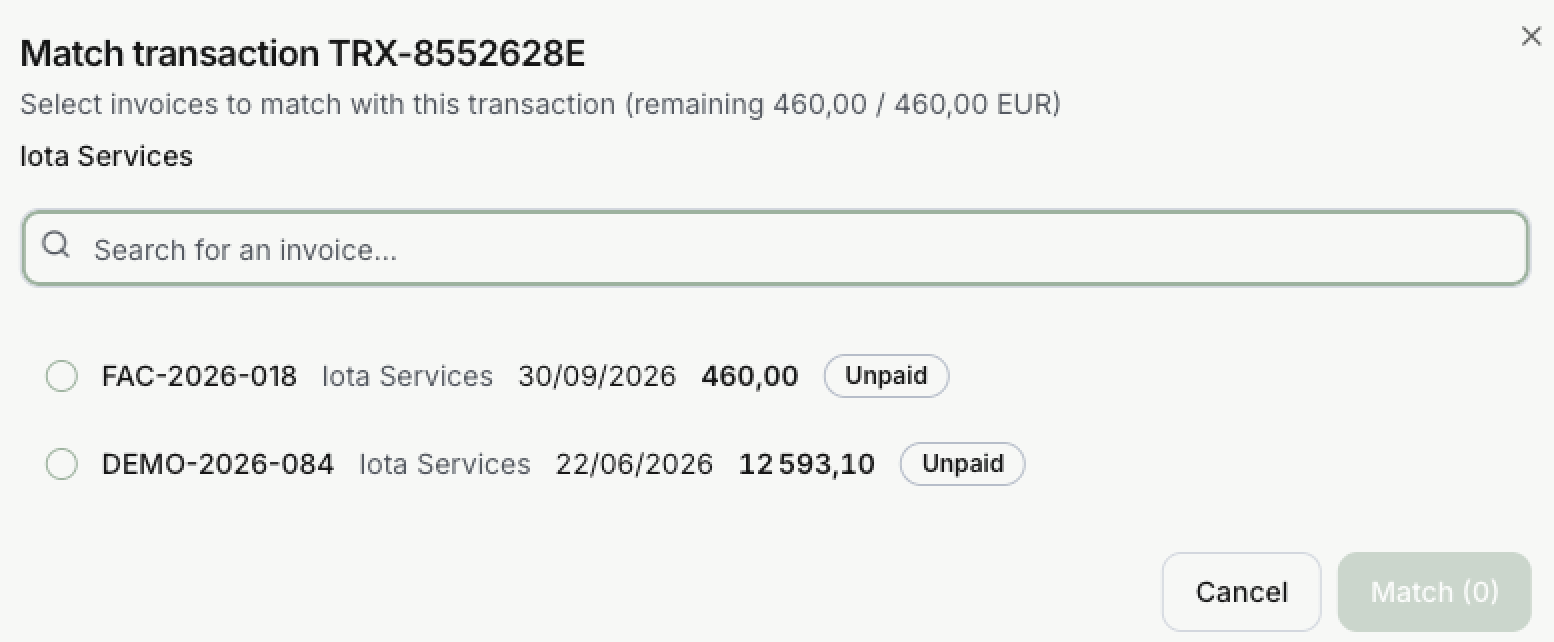
- The window shows what is left to match: here 460,00 / 460,00 EUR.
- It lists the open invoices of the counterparty. Use Search for an invoice… to find one.
- Select one or more invoices. The Match button shows how many you picked.
- Select Match. The status of the line changes. See Status.
In this example, Iota Services paid 460,00 and invoice FAC-2026-018 is for 460,00. Pick it, and the line becomes Matched.
A line needs a counterparty before you can match it. If it has none, Invunion opens the edit panel so you can pick one.
More ways to match, with examples, and how to undo a match: see Match from a transaction and Unmatch.
Add or edit a transaction
Select Add, or on a line.
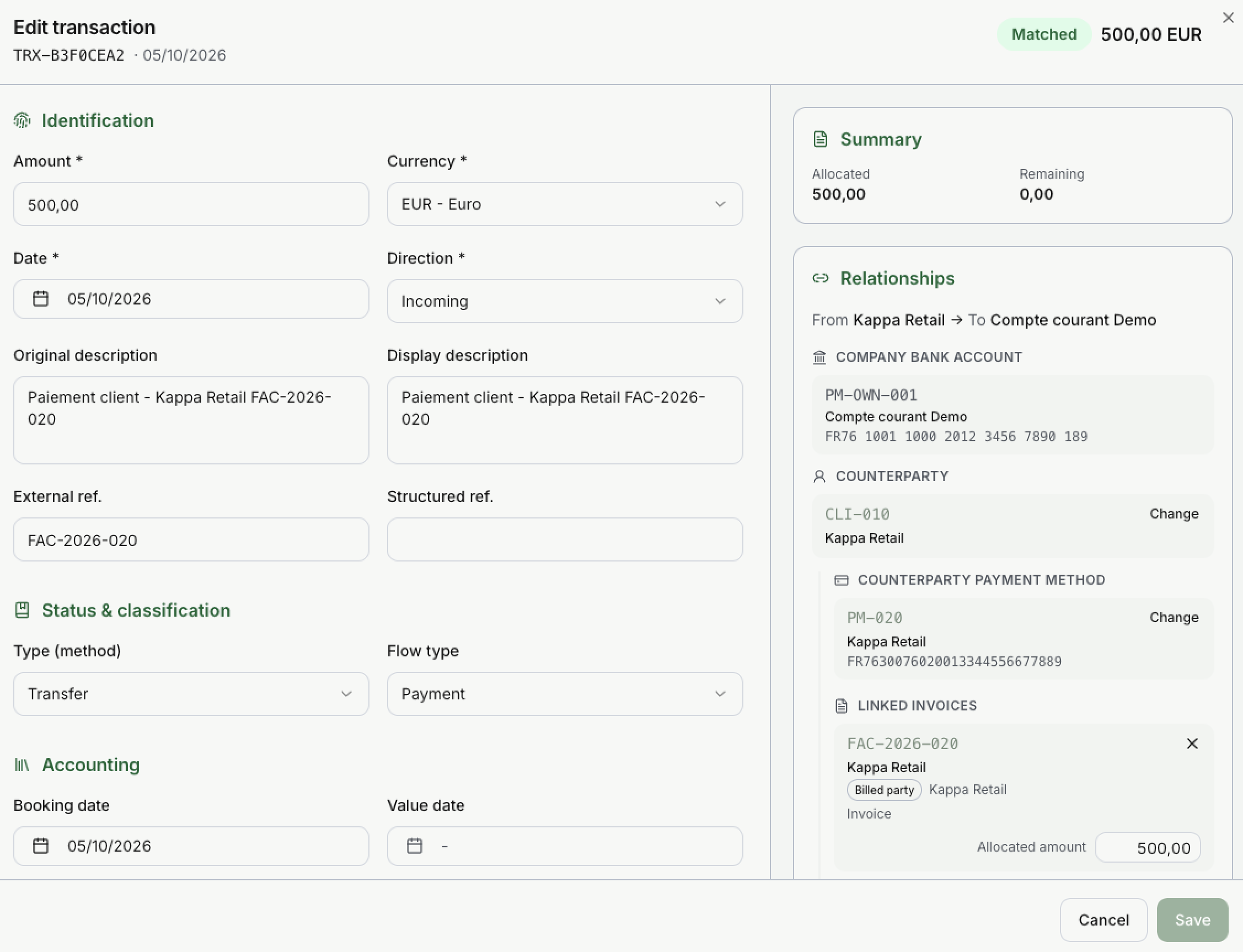
At the top, the panel shows the code, the date, the status and the amount.
In this example, Kappa Retail sent 500,00 EUR to the account Compte courant Demo. The whole amount pays invoice FAC-2026-020, so the line is Matched and Remaining is 0,00.
Identification
| Field | What it does |
|---|---|
| Transaction code | Only when you add one. On Auto, Invunion makes the code: TRX- and 8 characters. Switch to Custom to type your own. The code never changes after that. |
| Amount | Always positive. The direction says if money came in or went out. Required. |
| Currency | Three letters, such as EUR. Required. |
| Date | The date of the transaction. Required. |
| Direction | Incoming or Outgoing. Required. |
| Original description | The text exactly as the bank sent it. |
| Display description | A cleaner text, shown in lists. |
| External ref. | The reference of this line in another tool. |
| Structured ref. | A structured payment reference, when the bank sends one. |
A new transaction starts as Incoming, Payment, EUR, today.
Status & classification and Accounting
- Type (method): Card, Transfer, Direct debit, Cash, Check, Crypto or Other.
- Flow type: Payment, Refund, Fee or Chargeback.
- Accounting: Booking date, Value date, General ledger account, Analytic 1 and Analytic 2.
- Remittance information: the message of the payer.
- Metadata: anything that has no field of its own. Keys that start with
_are hidden in tables.
You do not set the status here. Invunion sets it from the matches.
Summary and relationships
On the right side of the panel:
- Summary: Allocated is the part already matched. Remaining is the part still to match.
- From … → To …: who sent the money and which of your accounts received it.
- Company bank account: your own account that received the money. You cannot change it.
- Counterparty: who paid. Select Change to pick another one. A transaction always needs a counterparty.
- Counterparty payment method: the IBAN, account number or other identifier used, shown masked. IBANs and account numbers are stored encrypted; see How account numbers are protected. When you pick a counterparty, Invunion fills in its default method.
- Linked invoices: the invoices and credit notes this transaction pays. Each one shows its Allocated amount, which you can change. Use Add an invoice… to add one, and to remove one.
A badge on each linked invoice says who paid it: Billed party, Third-party payer or Other payer.
Nothing is saved until you select Save.
When you change the counterparty by hand, Invunion keeps your choice. It does not overwrite it later.
Where transactions come from
| Source | What happens |
|---|---|
| Bank connection | Invunion syncs the lines of your connected bank account. The first sync loads up to 90 days of history. |
| Import | You load a statement file: CSV, JSON, camt.053 or another camt XML, MT940, BAI2, or a ZIP of them. Up to 10,000 lines per file. See Transaction import. |
| Automatic statements | Statement files arrive over SFTP. See Automatic statements. |
| EBICS | Invunion downloads your statements from your bank on a schedule. See EBICS. |
| API | Up to 1,000 transactions per call. See the API reference. |
| Add | You create one transaction by hand. |
The same bank line is never loaded twice. When a file contains a line you already have, Invunion skips it and tells you how many it skipped.
Invunion then looks for the payment method from the IBAN, account number or identifier on the line, and through it the counterparty. A UK sort code, a US routing number or a Canadian transit number with its account number works like an IBAN. See Bank accounts without an IBAN. When it finds none, the line goes to Unclassified (SYS-CPT-001) with its Default payment method (SYS-PM-001), until you pick the right counterparty.
Limits to keep in mind
- A connected bank does not always mean every account synced. Check the date of the last sync.
- Disconnecting a bank stops new lines. The lines already loaded stay.
- Supplier invoices and outgoing expenses are not reconciled yet. Do not force such a line onto a customer invoice.
Updated · View as Markdown