Browse documentation
Exclusion and inclusion rules
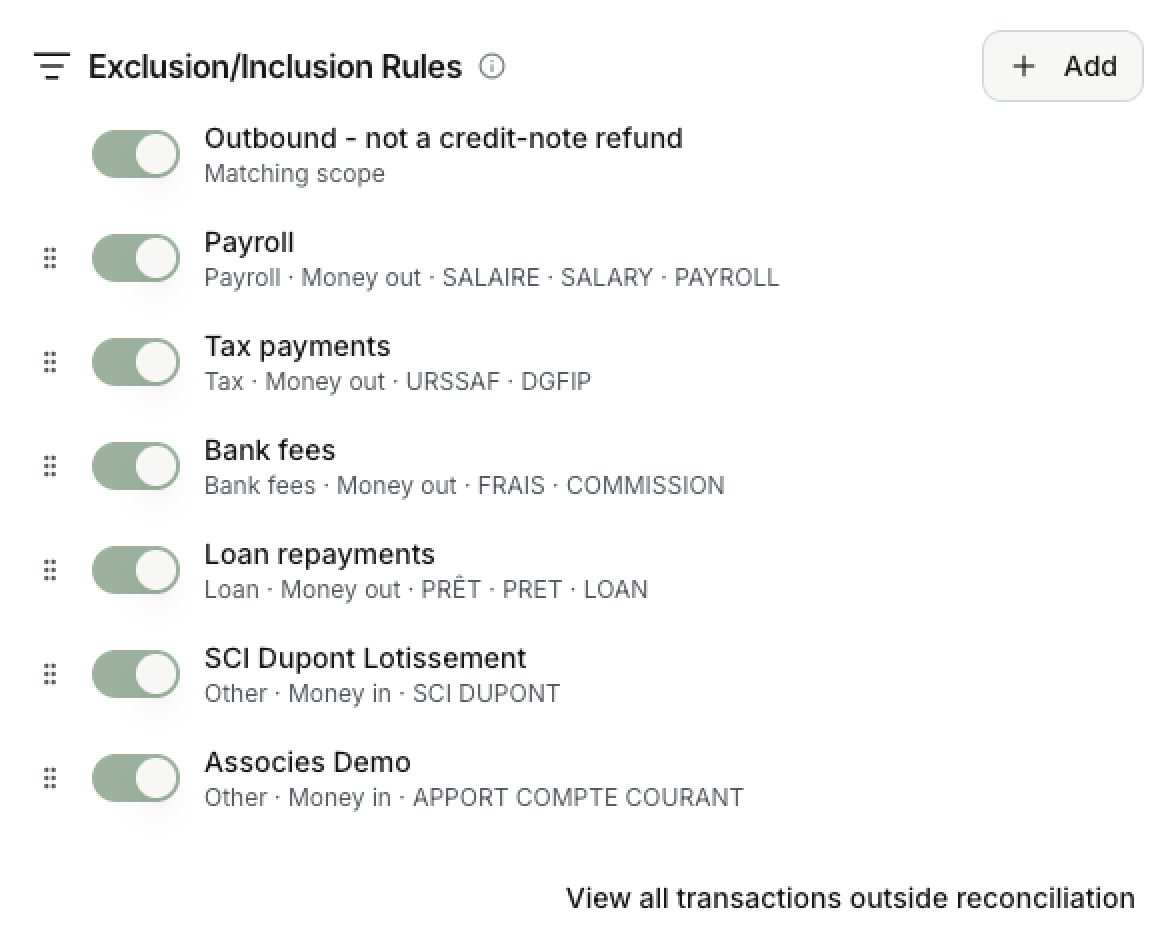
Settings > Administration > Rules. These rules decide which bank movements Invunion tries to match.
Their purpose is simple: you choose which transactions Invunion considers for matching, and which it leaves alone.
A movement that is out of scope stays in your bank feed, so balances remain correct, but it is never proposed against an invoice.
The default
By default, money in is always in scope, and money out is out of scope unless it refunds an open issued credit note.
This default is a built-in rule called “Outbound - not a credit-note refund”. It is always listed first, with a Matching scope badge. You can deactivate it if you find it necessary. Then all outgoing movements are in scope. Ignored rows and internal transfers (see below) are still left out.
Add a rule
Select Add. The rule form has these fields.
| Field | What it does |
|---|---|
| Name | A label for you, for example “Monthly payroll”. |
| Action | Exclude from reconciliation keeps matching transactions out. Always include brings them in, even if the default would leave them out. |
| Category | Only for exclude rules: payroll, tax, bank fees, loan, or other. It is stored as the reason the transaction was excluded, so you can find it later. |
| Direction | Money in, money out, or either. |
| Counterparty name contains | Text found in the counterparty name, for example URSSAF. |
| Description contains | Text found in the bank description, for example SALAIRE. |
| Counterparty IBAN is | One or more exact IBANs. |
| Counterparty identifier is | One or more identifiers such as a PayPal email or a terminal id. |
| Minimum / Maximum amount | Only movements inside this range. |
| Active | Switch a rule off without deleting it. |
How the conditions combine
- A rule needs at least one of the four identity conditions (name, description, IBAN, identifier). Any one of them matching is enough.
- You can add several values to each condition with Add. Any of them matching counts.
- Text conditions match part of the text and ignore case, but not accents:
PRETdoes not findPRÊT. - Direction and the amount range are filters on top.
What saving does
- Rules are one ordered list, and the first rule that matches wins.
- Saving applies the list to your open transactions. Rows a rule excluded, and that no longer match any exclude rule, return to your ledger.
- A transaction you ignored or included by hand is never overwritten by a rule.
- Transactions that are already matched, or partly matched, are not undone.
- New transactions are checked against the same list when they are imported.
Status of the transactions
A rule changes the status of the transactions it considers. See Transactions for the full list of statuses.
| Situation | Status |
|---|---|
| An exclude rule considers an open transaction | Ignored, with the rule’s category as the reason |
| The rule is turned off, changed, or deleted, and no other exclude rule considers the transaction | Back to To process, so it can be matched again |
| An Always include rule considers the transaction | It keeps its open status and takes part in matching |
| The transaction is already Matched or Partial | Unchanged |
| You ignored the transaction by hand | Stays Ignored, whatever the rules say |
An ignored transaction is not deleted. It stays in your bank feed, so balances remain correct.
Example 1: tax payments
Tax and social contributions leave your bank account every month. They never pay one of your invoices, so they should not take part in matching.
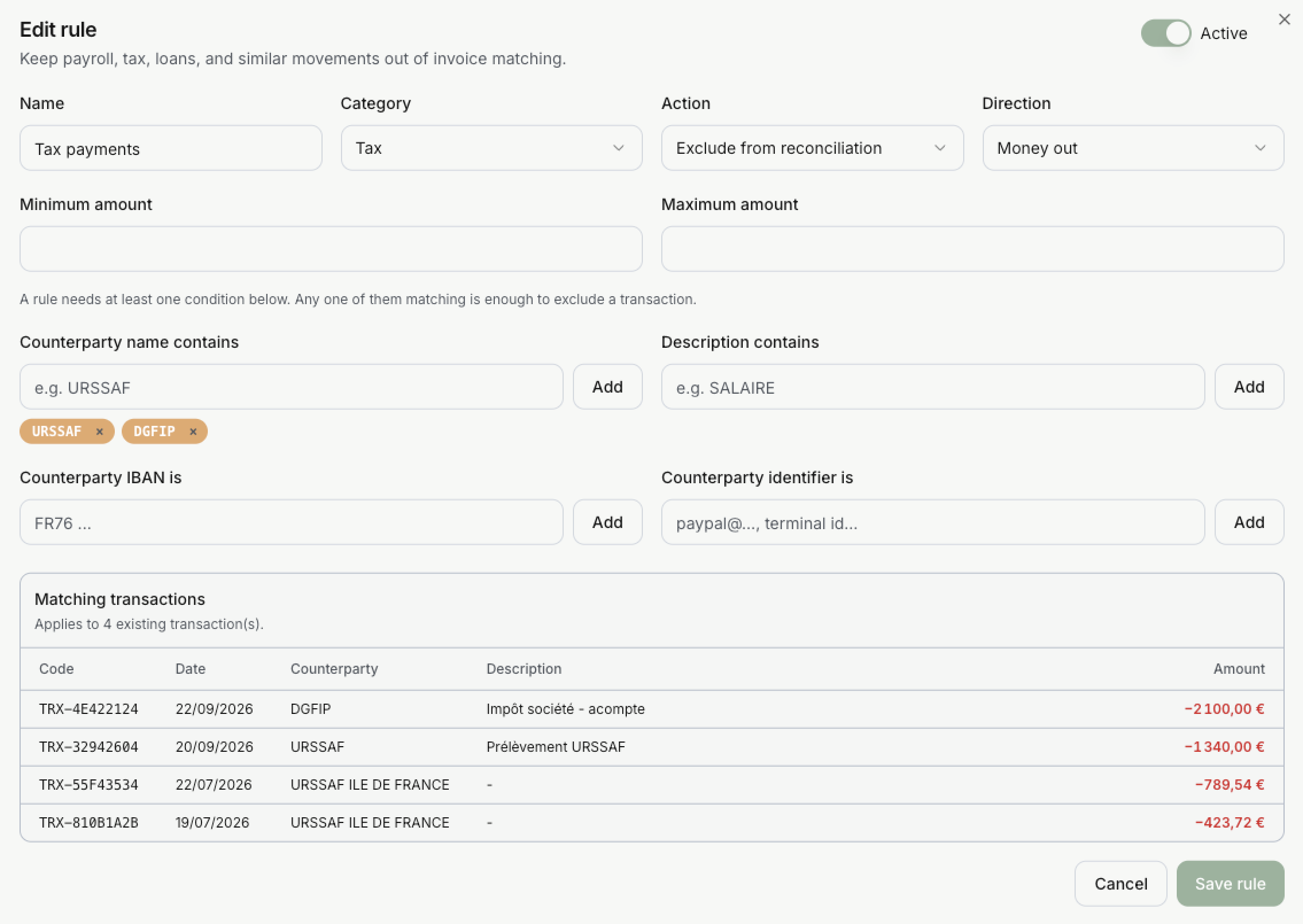
| Field | Value |
|---|---|
| Name | Tax payments |
| Category | Tax |
| Action | Exclude from reconciliation |
| Direction | Money out |
| Counterparty name contains | URSSAF, DGFIP |
Transactions considered by the rule (four):
| Counterparty | Description | Amount |
|---|---|---|
| DGFIP | Impôt société - acompte | -2,100.00 EUR |
| URSSAF | Prélèvement URSSAF | -1,340.00 EUR |
| URSSAF ILE DE FRANCE | none | -789.54 EUR |
| URSSAF ILE DE FRANCE | none | -423.72 EUR |
Why these transactions are not considered: each one is money out, and its counterparty name contains URSSAF or DGFIP. That is all the rule asks.
- The condition looks for a part of the name, so
URSSAFalso finds “URSSAF ILE DE FRANCE”. - The last two lines have no description. It does not matter, because one matching condition is enough.
- No amount range is set, so the rule covers every amount.
Once the rule is saved, the four lines take the status Ignored, with the reason Tax.
Example 2: bank fees
Bank fees are small charges taken by your own bank. No customer invoice matches them.
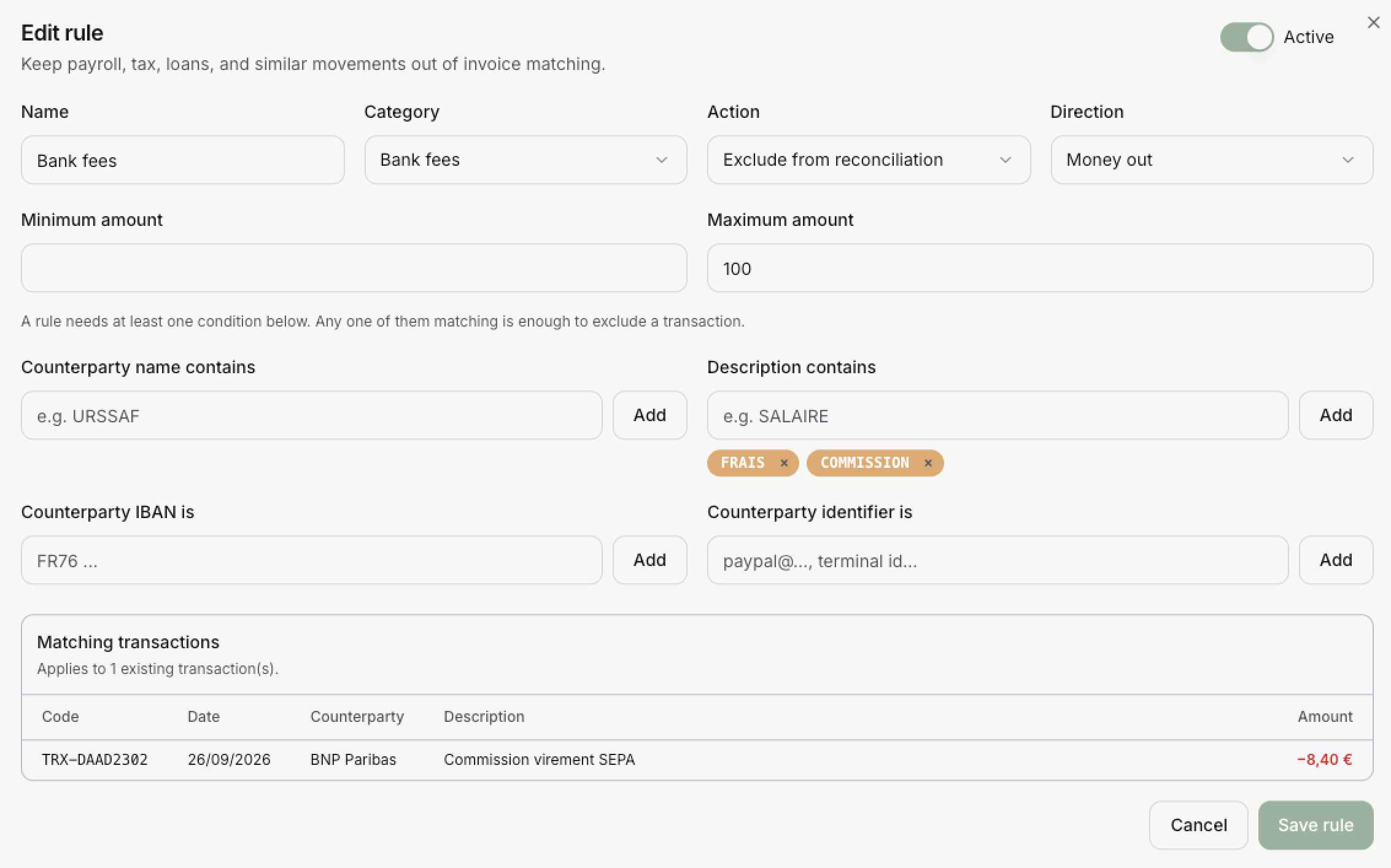
| Field | Value |
|---|---|
| Name | Bank fees |
| Category | Bank fees |
| Action | Exclude from reconciliation |
| Direction | Money out |
| Maximum amount | 100 |
| Description contains | FRAIS, COMMISSION |
Transactions considered by the rule (one):
| Counterparty | Description | Amount |
|---|---|---|
| BNP Paribas | Commission virement SEPA | -8.40 EUR |
Why this transaction is not considered: it is money out, its description contains COMMISSION, and 8.40 is under the maximum of 100. All three must be true.
- The rule reads the description, not the counterparty. A rule on the name “BNP Paribas” would also catch every other movement with that bank.
- The maximum amount is a safeguard. A payment of 5,000.00 whose description happens to contain “commission” stays where it is.
Once the rule is saved, the line takes the status Ignored, with the reason Bank fees.
Internal transfers
Money moving between your own bank accounts is not a rule you write. Mark each of your accounts as an own account on its payment method, linked to an Internal counterparty, and Invunion keeps the transfers between them out of matching on its own. See Payment methods.
Limits to keep in mind
- Rules apply to the Entity you are in.
- A rule is only as precise as its conditions. A short text such as
BNPcan catch more than you expect, so check the transactions considered by the rule before you save.
Updated · View as Markdown