Browse documentation
Dashboard
Dashboard in the menu. The Dashboard is the first page you see. It shows, in one place, how many invoices are paid, how many payments are matched, and what is still open.
Everything on the page follows the period you choose at the top right. Select any number to see what is behind it.
What you see
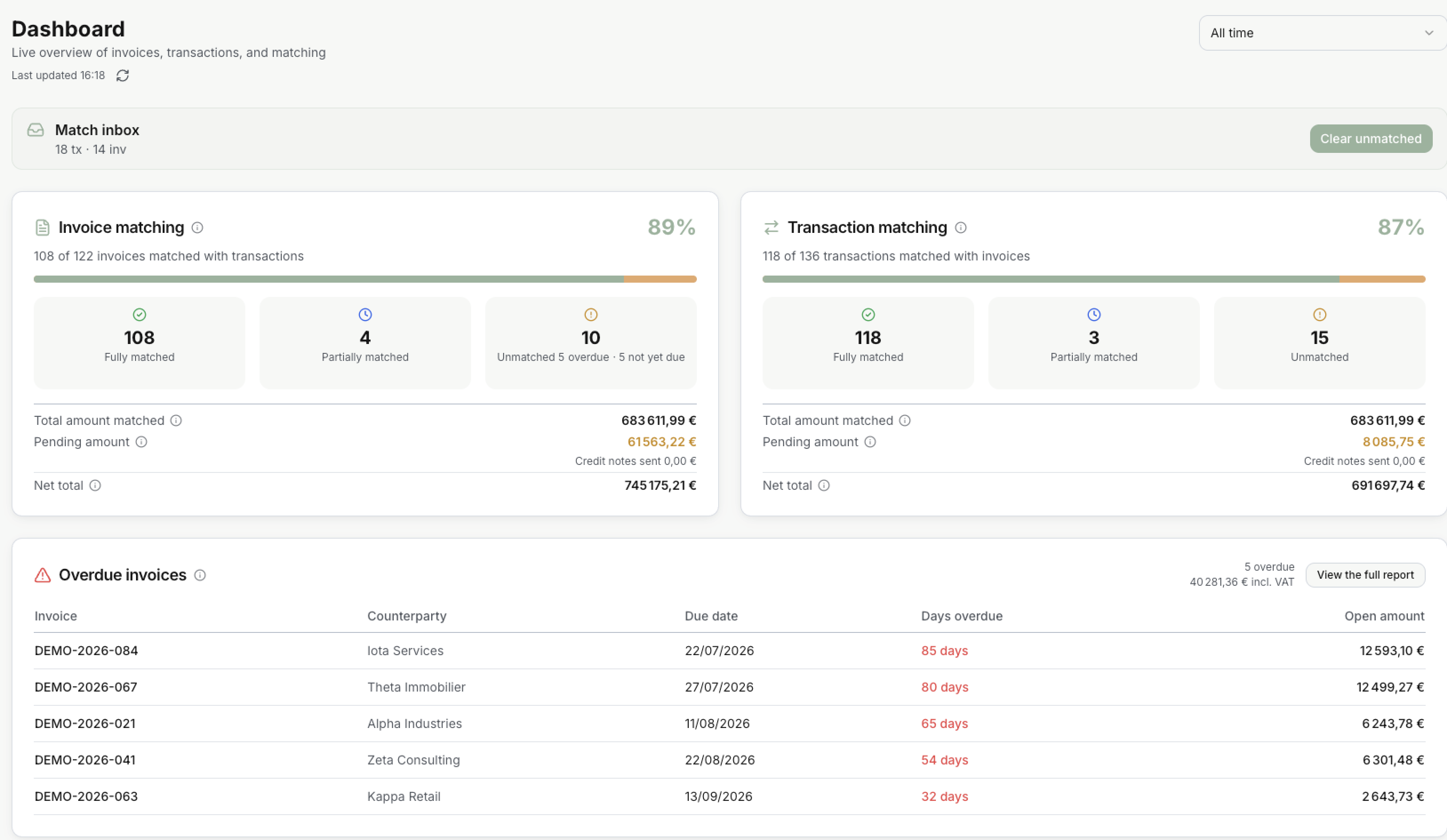
From top to bottom:
| Block | What it shows |
|---|---|
| Match inbox | The transactions and invoices still waiting for a match. |
| Invoice matching | How many invoices of the period are paid, and how much is still open. |
| Transaction matching | How many payments of the period are matched to an invoice. |
| Overdue invoices | The invoices past their due date that are not fully paid. |
| Invoices issued, Credit notes issued, Transactions considered | What came in during the period, in count and amount. |
| Revenue overview | A chart of what you invoiced and what was settled, over the period. |
| Recent activity | The last matches, invoices and transactions. |
Each block is explained in Dashboard metrics. Next to most titles, gives the same explanation in the app.
Last updated shows when the numbers were computed. Select to compute them again.
Choose the period
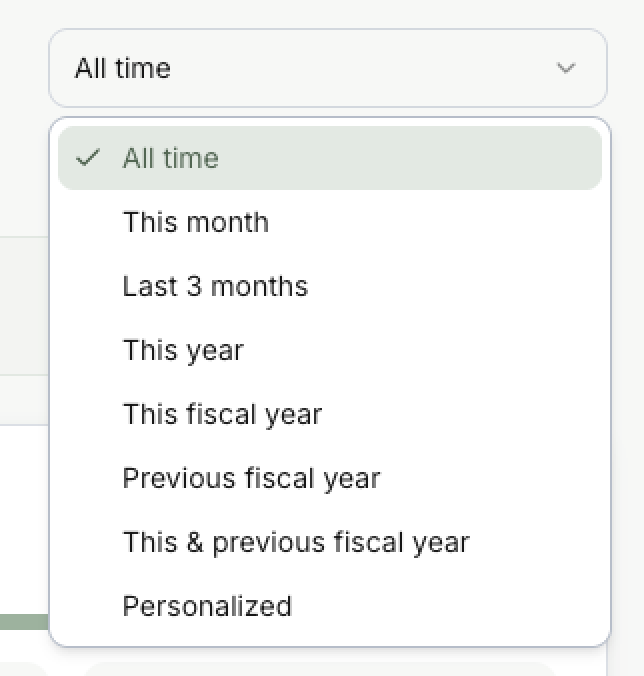
The picklist at the top right decides which invoices and transactions are counted. By default it is All time.
| Period | What it counts |
|---|---|
| All time | Everything, from your oldest invoice or transaction. |
| This month | From the 1st of this month to today. |
| Last 3 months | This month and the two months before it, from the 1st. In mid-October: 1 August to today. |
| This year | From 1 January to today. |
| This fiscal year | From the start of your fiscal year to today. |
| Previous fiscal year | The whole fiscal year before this one. |
| This & previous fiscal year | Both together. |
| Personalized | The dates you pick. At most 12 months. |
Your fiscal year starts in the month set in Accounting. It is January unless you changed it.
Invoices count by their issue date. Transactions count by their date. For example, choose This month: an invoice issued last month is not counted, even if it was paid today.
What the period does not change
Three blocks always show the situation today, whatever the period:
- Match inbox: everything still to match.
- Overdue invoices: every invoice overdue today.
- Recent activity: the last events.
An invoice issued two years ago and still unpaid stays in Overdue invoices, even with This month selected.
See the detail behind a number
Select a number, and Invunion opens the list behind it, with the filters already set.
For example, select 10 Unmatched under Invoice matching. Invunion opens Invoices issued with Type set to Invoice, Status set to Unmatched, and the dates of the period:
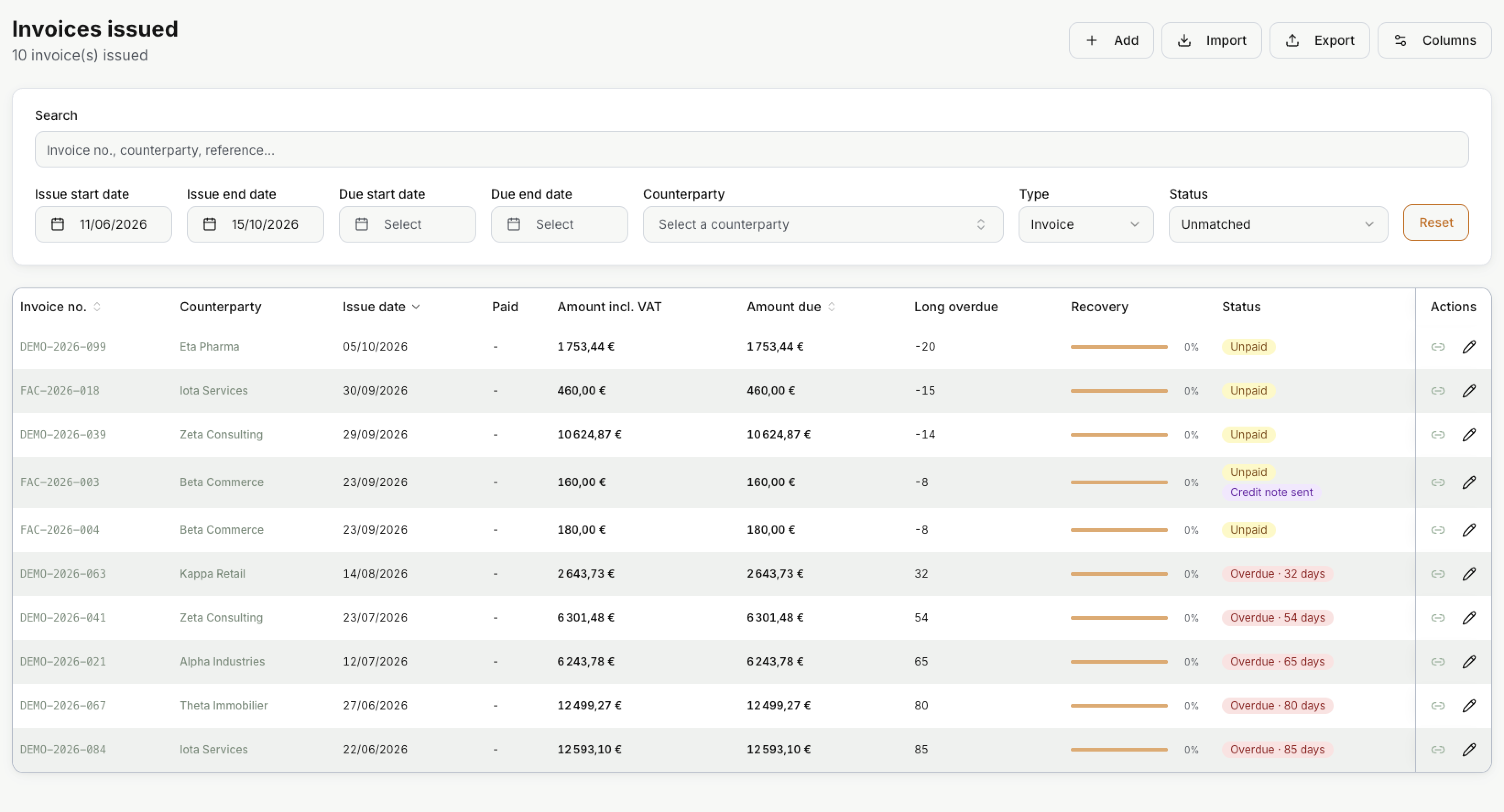
With All time, the dates go from your oldest invoice to today: here 11/06/2026 to 15/10/2026.
Select 4 Partially matched, and the same list shows the invoices that are Partially paid:
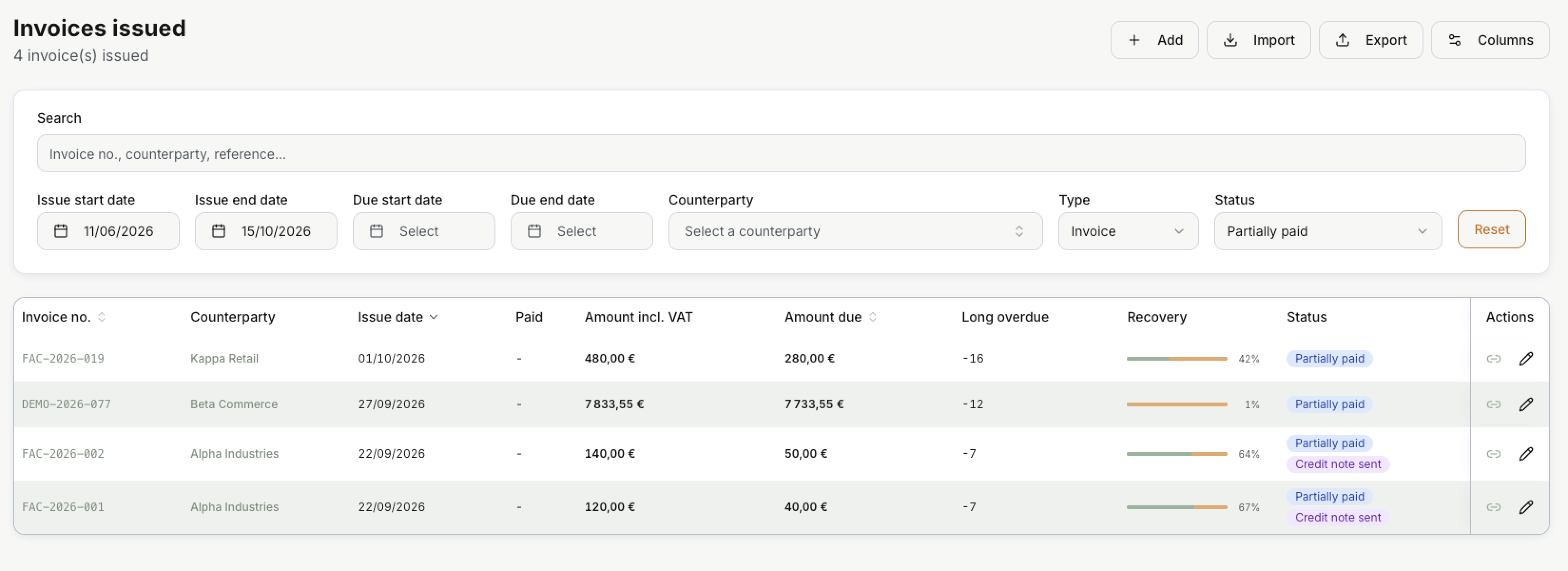
What each number opens:
| Select | Opens |
|---|---|
| Fully matched, Partially matched, Unmatched under Invoice matching | Invoices issued, on the invoices with that status, in the period. |
| Fully matched, Partially matched, Unmatched under Transaction matching | Transactions, on the transactions with that status, in the period. |
| Clear unmatched in Match inbox | The Match inbox, to match what is left. |
| A line or View the full report in Overdue invoices | Invoices issued, on the Overdue invoices. |
| Invoices issued, Credit notes issued | Invoices issued, on the invoices or the credit notes of the period. |
| Transactions considered | Transactions, on the lines in the reconciliation scope, in the period. |
| A line in Recent activity | The list it belongs to. |
Download the detail
Select Export at the top of the list. Invunion downloads the lines you see as a CSV file, with the filters and the columns you chose.
To add a column before you export, such as Due date, use Columns.
You can change any filter after you arrive. The Dashboard is not affected.
Updated · View as Markdown