Browse documentation
Technical setup
Invunion needs two things to work: your invoices and your bank lines. These three steps decide how they arrive, how Invunion reads them, and whether the result is what you expect.
Step 1: Choose your IT architecture
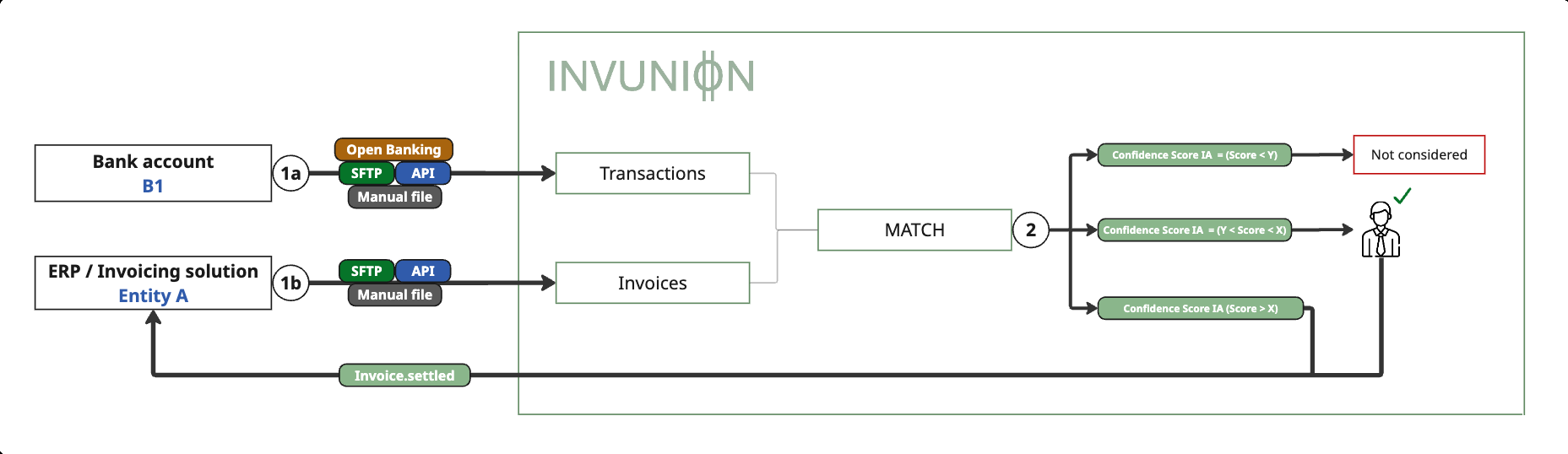
Your IT architecture comes down to three essential questions:
- How do I get my transactions into Invunion?
- How do I get my invoices into Invunion?
- Where do I send the information that a match was made and an invoice is paid?
Answer each one with the options below. You can mix them, for example invoices by API and bank lines by Open Banking, and change later.
Question 1: How do I get my transactions?
Step 1a on the scheme.
| Option | How it works | You need |
|---|---|---|
| Open Banking | Connect your bank account from the dashboard. Invunion syncs the new lines by itself. The first sync loads up to 90 days of history. | The bank login of someone allowed to share the account. |
| SFTP | Your bank drops its statements on Invunion, or Invunion fetches them from your bank: camt.052, camt.053, camt.054, MT940, BAI2, or a ZIP of them. | A request to Invunion, which sets up the connection with you. |
| EBICS | Invunion downloads your camt.053, camt.052, camt.054 or MT940 statements from your bank on a schedule. Download only: no payments. | An EBICS T contract from your bank, and an admin who sends the keys and signs the initialisation letter. |
| File import | Finance uploads a statement in Transactions, with Import: CSV, JSON, camt, MT940, BAI2 or a ZIP. Up to 10,000 lines per file. | Nothing from IT. |
| API | Your system sends the lines, up to 1,000 per call. | A developer and an API key. |
Read: Where transactions come from, Automatic statements, EBICS, Ingest transactions.
Question 2: How do I get my invoices?
Step 1b on the scheme.
| Option | How it works | You need |
|---|---|---|
| File import | Finance exports the invoices from your accounting or invoicing tool and uploads them in Invoices Issued, with Import: CSV, JSON, or UBL and CII XML, one by one or in a ZIP. Up to 5,000 lines per CSV or JSON file. | Nothing from IT. |
| SFTP | Your ERP drops UBL or CII files, or a ZIP of them, on the SFTP connection. Invunion reads each new file. | A scheduled export from your ERP, and a request to Invunion. |
| API | Your ERP sends each invoice, with its customer, when it is issued. | A developer and an API key. |
Read: Where invoices come from, Invoice import, Create an invoice.
Question 3: Where do I send that a match was made and an invoice is paid?
Step 2 on the scheme. Invunion matches each transaction with your invoices. Depending on its level, a match is not proposed, waits in the Match inbox for a person, or is confirmed automatically.
Your ERP or accounting tool must learn that an invoice is paid, so it can mark it and stop chasing the customer. Your team often wants to know too.
| Option | How it works | Best for |
|---|---|---|
| Webhooks | Invunion calls a URL of your system as soon as something happens. Use Invoice settled when an invoice has nothing left to pay, Invoice settlement changed for every payment or undone match, and the Matching events to follow each match. | Updating your ERP at once, without anyone typing. |
| API | Your system asks Invunion when it wants, for example every night: the list of matches, or the invoices with their status and amount due. | A system that cannot receive calls, or a nightly batch. |
| Export | Finance downloads the Invoices issued list as a CSV file, with the status and the paid date, and loads it into the accounting tool. | Low volumes. |
| Notifications | Invunion tells people, not systems: an email, a Slack or a Microsoft Teams message, instantly or as a daily, weekly or monthly summary. For example Invoice settled for the finance team, Invoice overdue for the person who chases payments, Match suggested for whoever reviews the Match inbox, and Bank sync failed or Bank disconnected for IT. | Keeping your team informed, on top of any of the options above. |
Read: Webhooks, List matches, List invoices, The Invoices issued list, Notifications.
Step 2: Map your invoice and transaction imports
Developer > Import data.
A mapping tells Invunion which column or tag of your file holds which value: the invoice number, the date, the amount. You map a format once, and every later file of that format is read the same way, whether it comes from an upload, the SFTP inbox or the API.
This step matters three times:
- For your tests, so the sandbox reads your real files.
- For your migration, when you load your open invoices and past bank lines.
- For production, so every daily file is read without errors.
- Invoices. In Invoice import, choose the Format (CII, UBL, CSV or JSON), drop a sample file, link each column to an Invunion field, and select Save. See Map a format and The invoice fields.
- Transactions. In Transaction import, choose the Company account, the Format (CSV, JSON or CAMT), set the file settings, then map the columns. You do it once per account. See Set up a mapping and File settings.
- SFTP only. Give each account its own SFTP file prefix, so each file lands on the right account. See Which account gets a file.
Use a real export from your own systems as the sample file, not a file made by hand. That way the mapping fits what will arrive every day.
Step 3: Test with your past invoices and transactions
Before going live, load real past data into your sandbox Entity and look at how Invunion reacts. This is the best way to find the cases a sample dataset does not show: a customer who pays several invoices at once, a payment in two times, a bank fee taken from a payment, a customer who never cites the invoice number.
- Pick a period. One to three months is enough. Take the bank lines of that period, and the invoices issued in it, plus the older invoices still open at its start.
- Import the invoices the way you will in production: upload, SFTP or API.
- Import the bank lines of the same period on the right company account. In the sandbox, create the company account first in Payment Methods.
- Look at the result. Open the Match inbox and the Transactions list, and check:
- how many bank lines are Matched on their own, and at which level.
- which ones are Unmatched, and why.
- which lines are out of scope, and if that is right. See Status and scope.
- Adjust and test again. Add an exclusion or identification rule, or change the match levels, then import the next period. New settings apply to the next matching run. Matches already stored are not rewritten.
When the results look like what your team would have done by hand, you are ready to go live.
Updated · View as Markdown