Browse documentation
Audit log
Developer > Integrations > Audit Log. The audit log is the record of what happens in the Entity you are in. Entries are immutable: nobody can edit or delete them from the app.
How the log works
Every entry answers three questions:
- Who: the actor, such as a person, an API key or the system.
- What: the action and the record it touched, such as an invoice, a transaction or a notification rule.
- From where: the source, such as the app, the API, an automation or an import.
Entries also keep the date and time, and, when something changed, the values before and after.
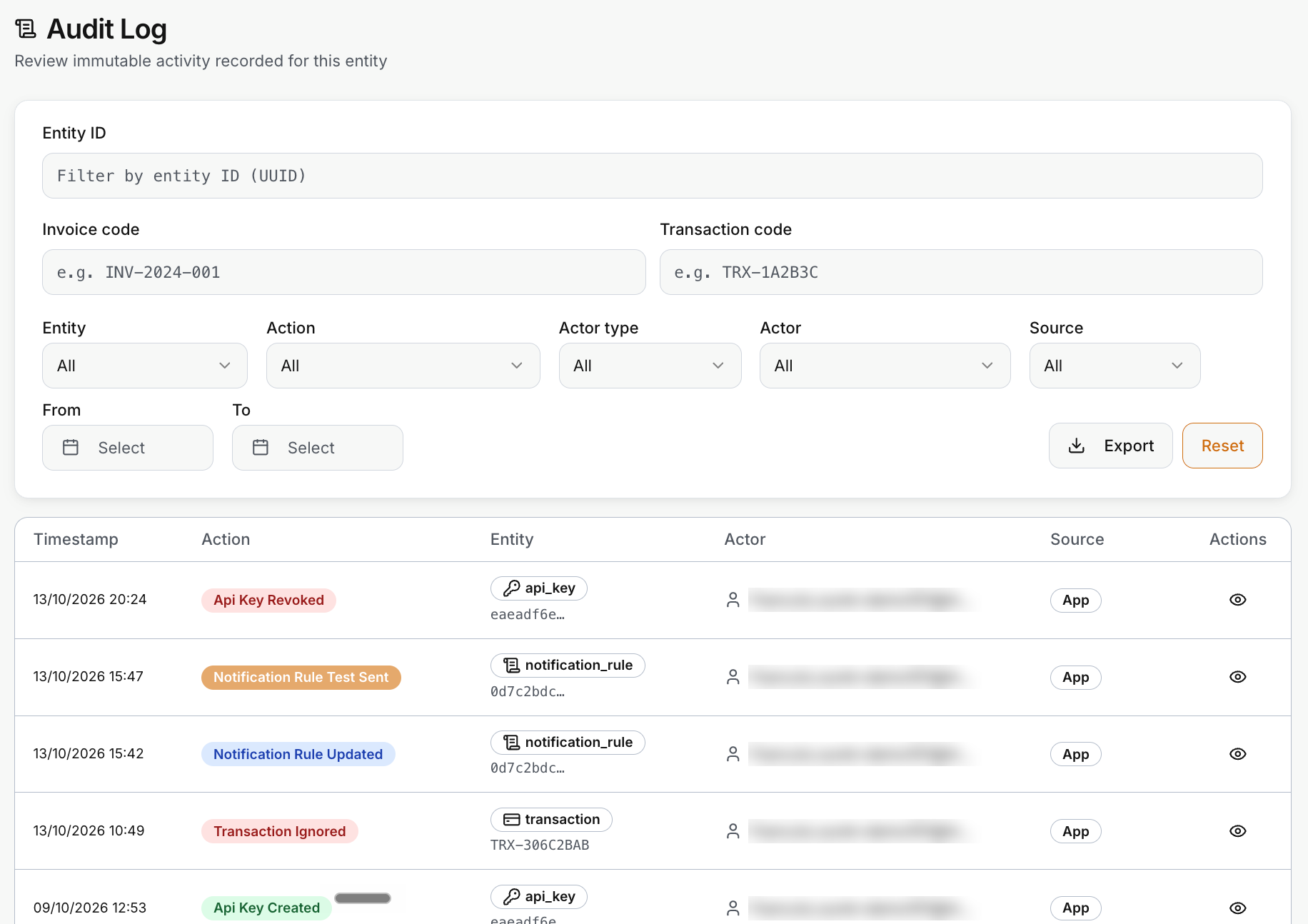
Each line of the table is one entry. It shows the timestamp, a colored badge with the action, the type of record with a short ID or its code, the actor, the source, and an eye icon that opens the entry. The newest entries come first.
Find an entry
Use the filters at the top of the page. They can be combined.
| Filter | What it does |
|---|---|
| Entity ID | A record’s full ID, when you have it. |
| Invoice code and Transaction code | Entries about one invoice or one transaction, for example INV-2024-001. |
| Entity | The type of record, such as api_key, notification_rule or transaction. |
| Action | What was done, such as Api Key Revoked or Transaction Ignored. |
| Actor type and Actor | Who did it: a type first, then a name. |
| Source | Where it came from. |
| From and To | A range of dates. |
Reset clears all the filters. The table is paged.
Actors and sources
| Actor type | Meaning |
|---|---|
| User | A member working in the app. |
| API key | A system calling the API, shown by the key’s name. See API keys. |
| System | Invunion itself, for example when it suggests a match. |
| Support | Invunion support working on your request. |
Entries written before actors were tracked say so.
| Source | Meaning |
|---|---|
| App | Someone used the screens. |
| API | A call to the API. |
| Automation | A rule or a background job. |
| Import | A file or an API import. |
Open an entry
Select the eye icon on a line. The Audit entry panel opens, with the entry number, the action, the type of record and the source at the top.
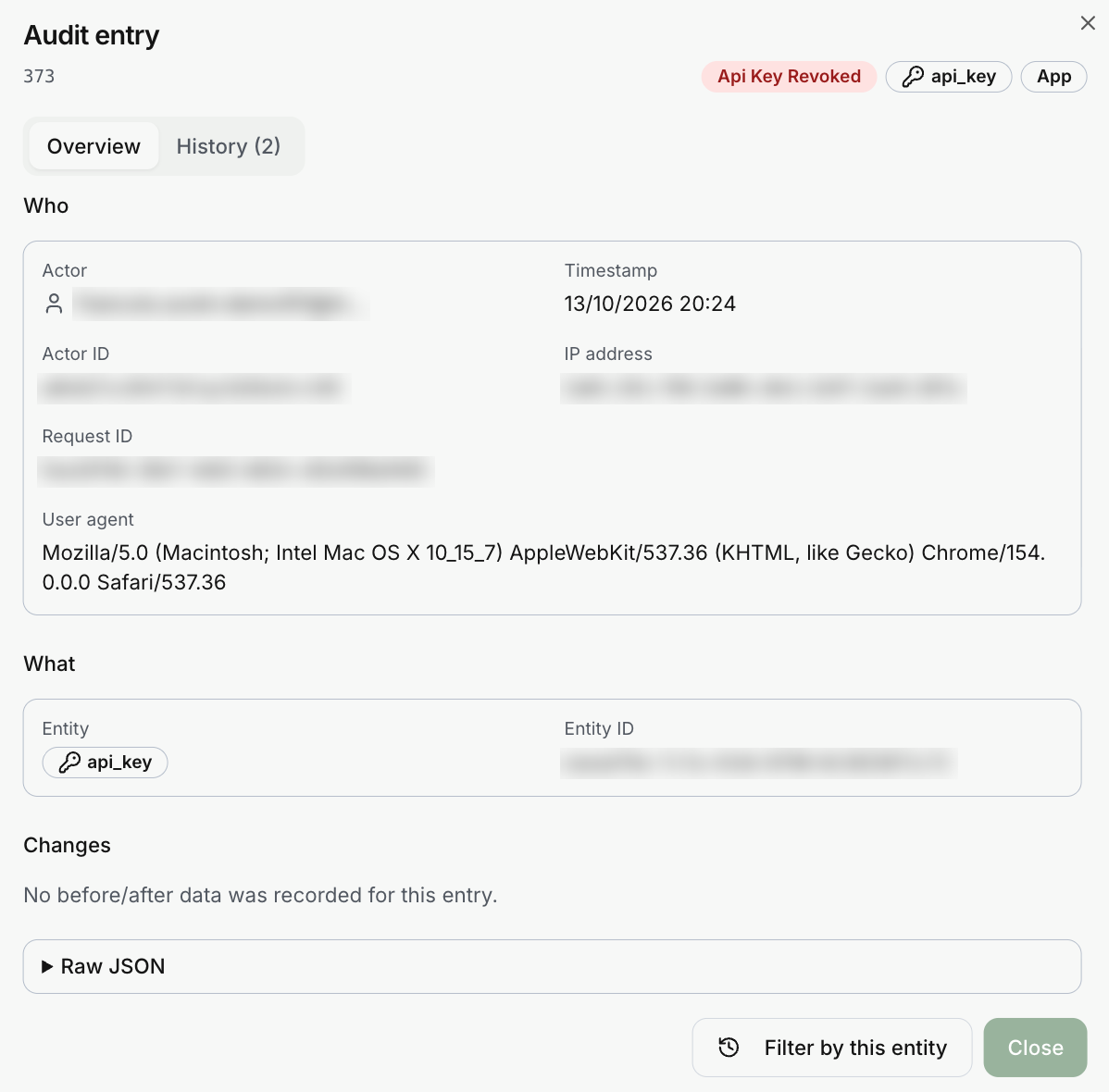
The Overview tab has four parts:
- Who: the actor, the timestamp and, when it was recorded, the actor ID, the IP address, the request ID and the user agent. If the actor is an API key, a link takes you to the keys.
- What: the type of record and its ID. For a match, Related documents lists the codes of the transaction and the invoice.
- Changes: each field with its value before and after. Some entries have no changes to show, as in the screenshot, and the panel says so.
- Raw JSON: the full entry as recorded, with a copy button.
The History tab lists every recorded change for the same record, oldest first, and its number tells you how many there are. Filter by this entity closes the panel and filters the table on that record.
Example: a suggested match
Invunion found a possible match between a transaction and an invoice and suggested it, so the entry has the actor System and the source Automation. A suggested match waits in the Match inbox until a person confirms or rejects it. See Match levels.
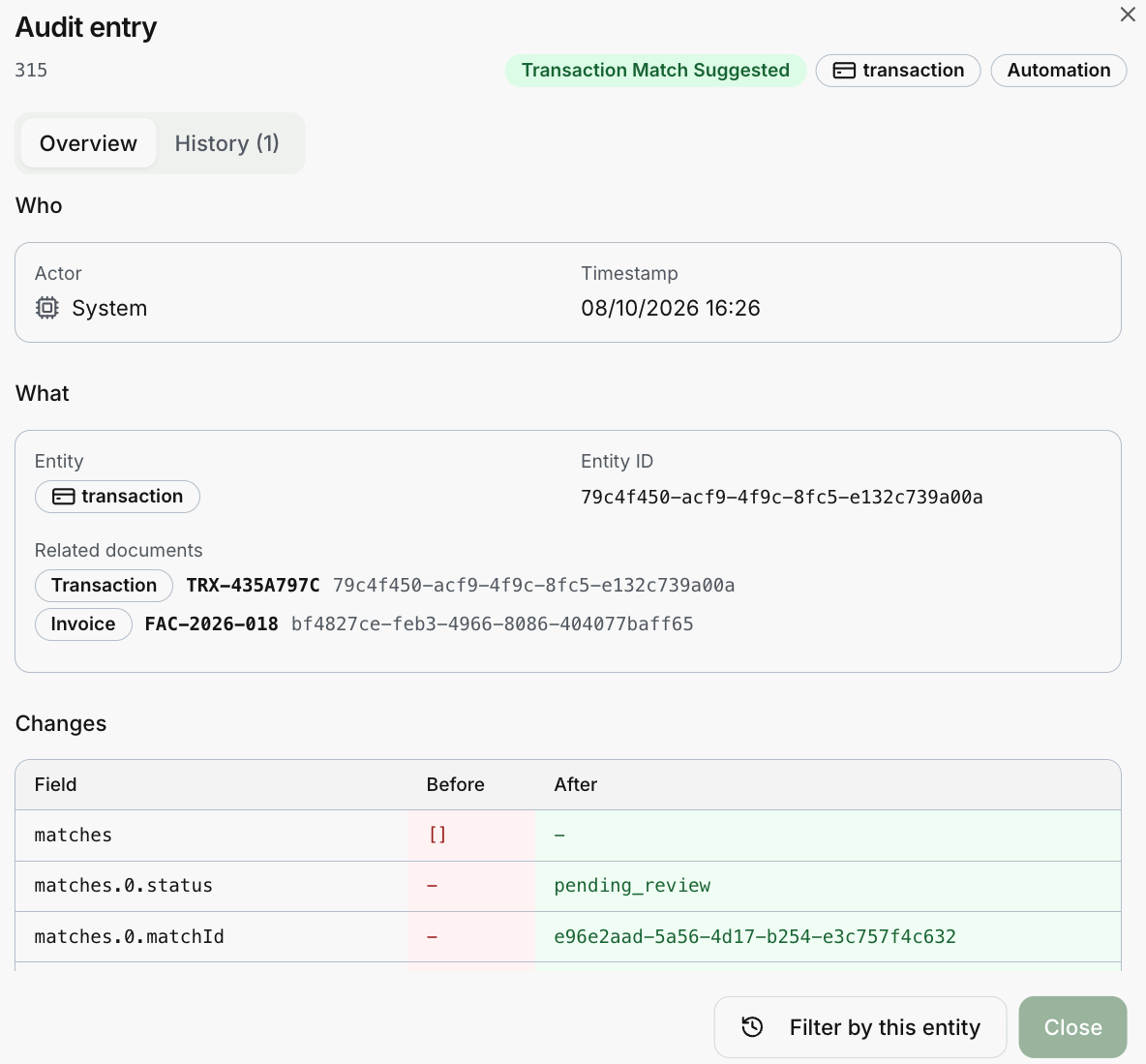
| Part | What it tells you |
|---|---|
| Related documents | The transaction and the invoice that were compared, with their codes. |
| Changes | The matches field was empty before. After, it holds a new match with the status pending_review, which means it waits in the Match inbox for a person. |
Export
Export offers Export as CSV and Export as JSON. The file contains what the current filters show, up to 100,000 rows. Narrow the dates first if you have more.
How long it is kept
Recent entries stay in the app for 12 months. Older ones are archived and no longer appear on the screen.
Limits to keep in mind
- The log shows what Invunion recorded. It does not replace the audit trail of your accounting system.
- Entries contain names, codes and amounts. Share exports only through approved channels.
Updated · View as Markdown