Browse documentation
Invoices issued
Invoices Issued in the menu. An invoice issued is a bill you sent to a customer. A credit note is a document that gives money back to the customer, or cancels all or part of an invoice.
Invunion does not create or send invoices. You bring them in from your billing tool. Invunion then matches them to the transactions that pay them.
How invoices work
Each invoice has three things:
- What was billed: a number, a date, a due date and an amount.
- Who must pay: the customer, a counterparty. Sometimes another company pays for it, such as an insurer or a parent company.
- What was paid: the transactions and credit notes matched to it, the Amount due, and a status. See Status and credit notes.
The Invoices issued list
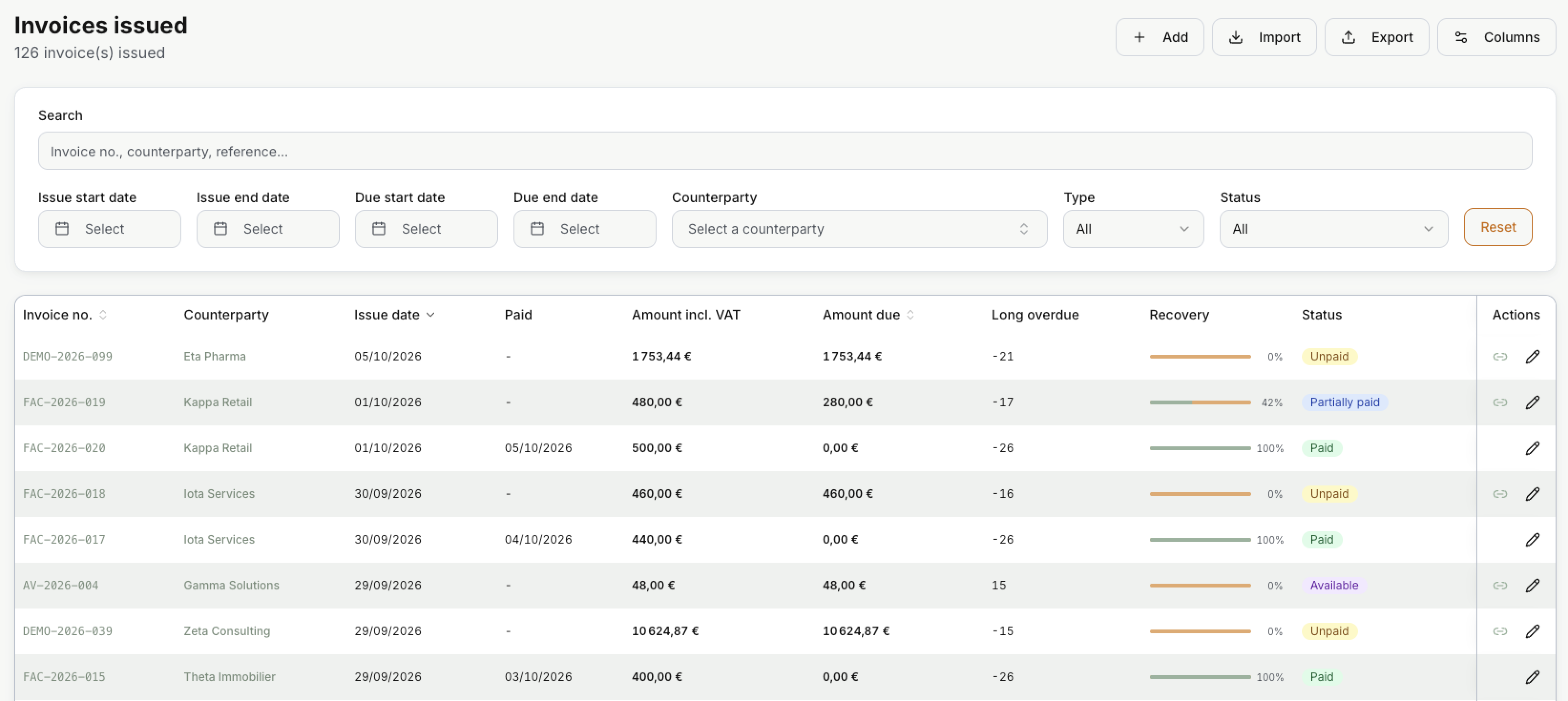
Each line is one invoice or credit note. The newest come first. The buttons at the top:
| Button | What it does |
|---|---|
| Add | Create one invoice or credit note by hand. |
| Import | Create many at once from a file. See Where invoices come from. |
| Export | Download the list as a CSV file, with the columns you see. |
| Columns | Show, hide or reorder columns. |
Search looks in the invoice number, the customer name written on the invoice, the external reference and the description.
| Filter | What it does |
|---|---|
| Issue start date, Issue end date | Only the invoices issued between two dates. |
| Due start date, Due end date | Only the invoices due between two dates. |
| Counterparty | Only the invoices of one customer. |
| Type | Invoice or Credit note. |
| Status | One status, such as Overdue. Invoice and credit note statuses are listed in two groups. |
Reset clears them all.
Each line shows these columns by default:
| Column | What it shows |
|---|---|
| Invoice no. | The invoice number. Select it to open the invoice. |
| Counterparty | The customer. Select the name to open the counterparty. |
| External ref. | The reference of this invoice in another tool. |
| Issue date | The date of the invoice. |
| Paid | The date the invoice was fully paid. Empty while something is still due. |
| Settled | The part already covered, by payments and by credit notes. |
| VAT amount | The VAT on the invoice. |
| Amount due | What the customer still has to pay. |
| Status | One or more badges. See Status. |
| Recovery | A bar with the percentage already settled. |
With Columns you can add more, such as Amount incl. VAT (the total of the invoice), Due date, Type, Amount excl. VAT or Metadata.
Long overdue counts the days since the due date: until the payment, or until today if it is still unpaid. A negative number means the due date is still to come, or the customer paid early. In the screenshot, -21 means Eta Pharma still has 21 days to pay.
| Icon | What it does |
|---|---|
| Quick match. Opens a window with the transactions and credit notes you can match to this invoice. See Quick match. Shown only when an amount is still due. | |
| Opens the invoice in the edit panel. |
You cannot delete an invoice issued. You can cancel it instead. See Cancel an invoice.
Quick match
Quick match is the fastest way to find the payment of an invoice by hand.
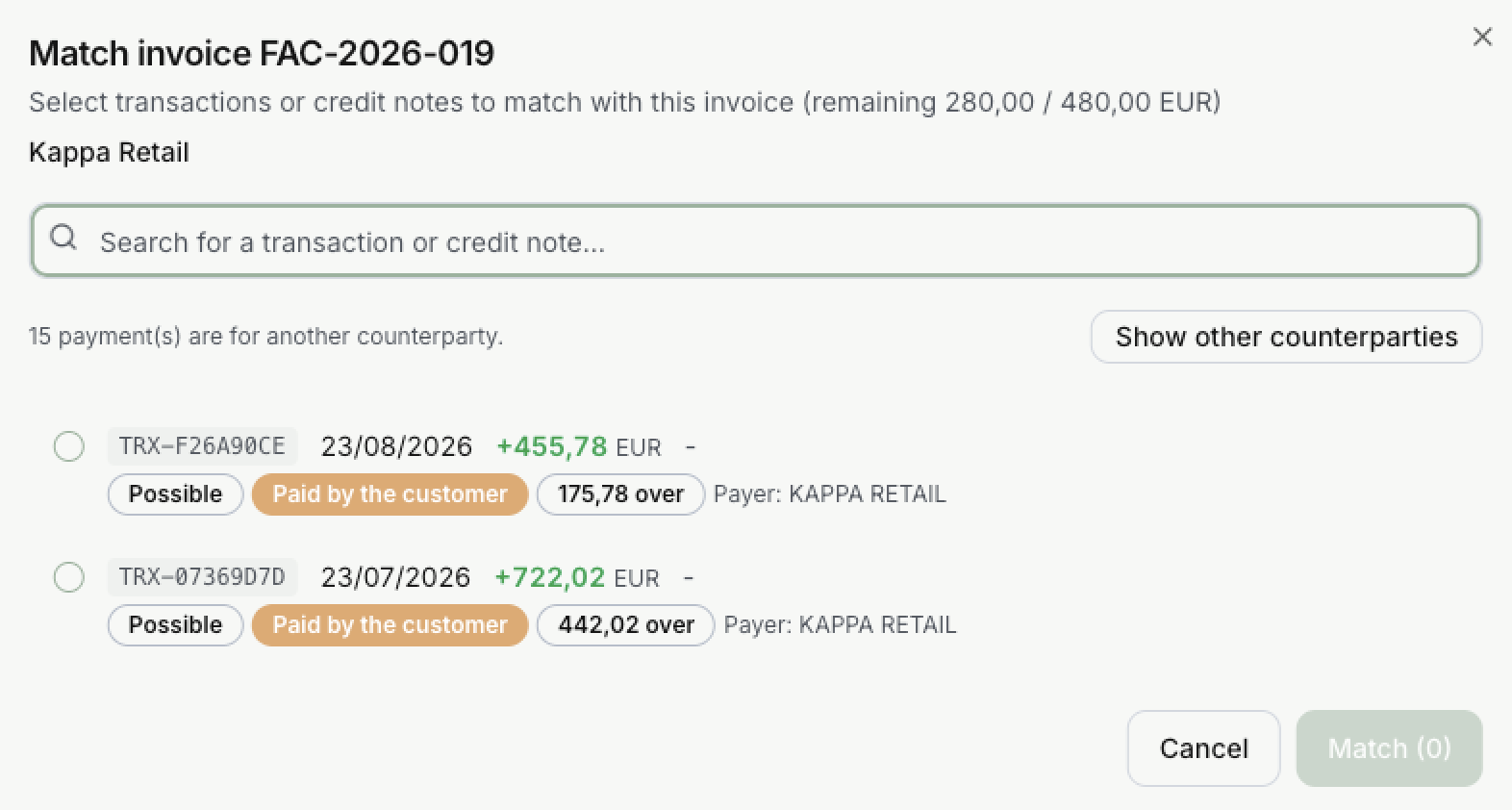
- The window shows what is left to pay: here 280,00 / 480,00 EUR.
- It lists the payments of the customer that are not fully used yet, and its available credit notes. Use Search for a transaction or credit note… to find one.
- Select one or more lines. The Match button shows how many you picked.
- Select Match. The status of the invoice changes. See Status.
Each line has badges to help you choose:
| Badge | Meaning |
|---|---|
| Possible | How sure Invunion is. See Match levels. |
| Paid by the customer | Who sent the money: the customer, the payer named on the invoice, or someone else. |
| 175,78 over | The payment is bigger than what is left. short means it is smaller. Exact means it fits. |
| Payer: | The name of the sender, as written by the bank. |
Only the payments of this customer are listed. Show other counterparties adds the payments of other customers, for example when a parent company paid.
An invoice needs a counterparty before you can match it. If it has none, Invunion opens the edit panel so you can pick one.
More ways to match, with examples, and how to undo a match: see Match from an invoice and Unmatch.
Add or edit an invoice
Select Add, or on a line.
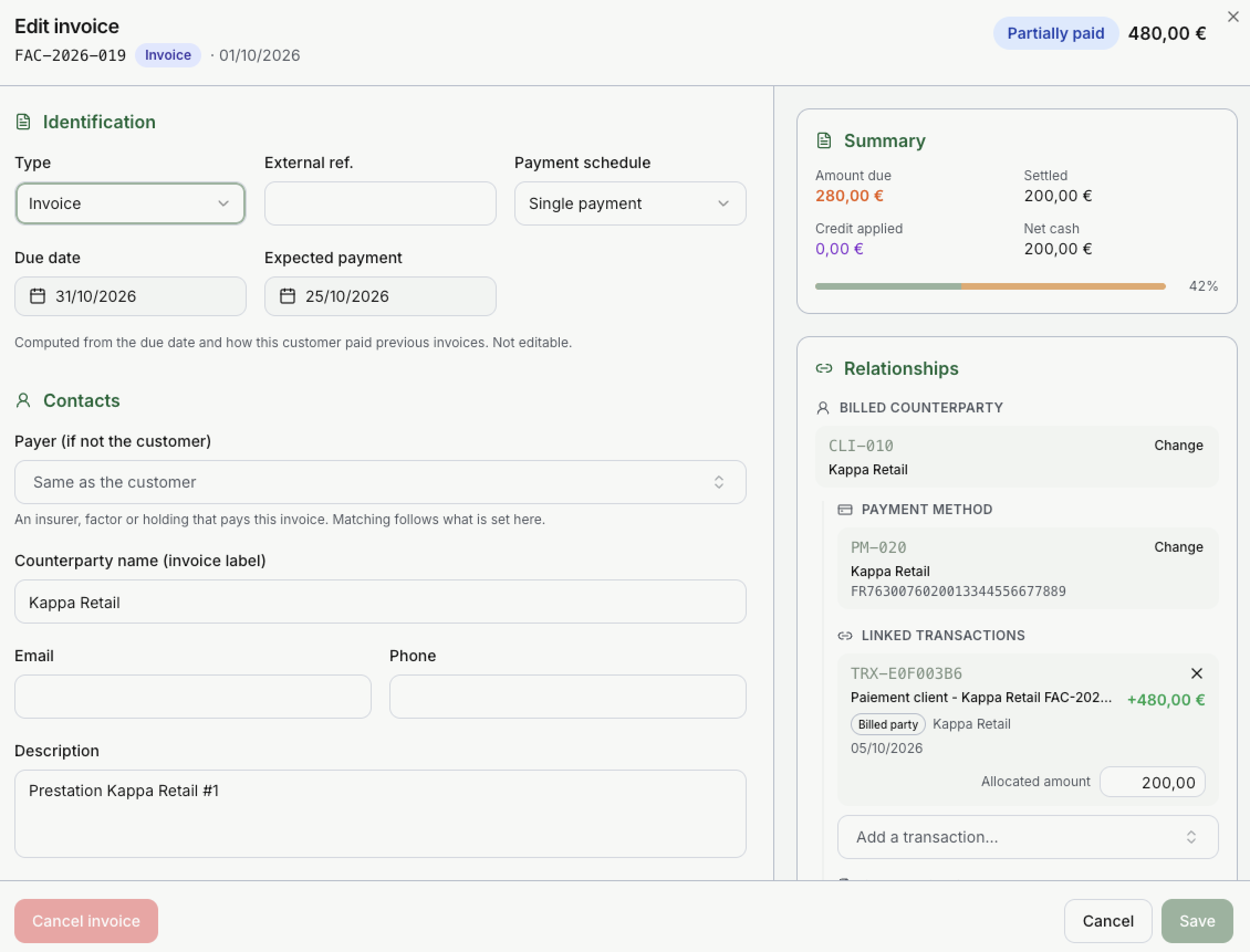
At the top, the panel shows the invoice number, the type, the date, the status badges and the total.
In this example, Kappa Retail must pay 480,00 €. A payment of 480,00 € (TRX-E0F003B6) gives 200,00 € to this invoice, so the invoice is Partially paid, Amount due is 280,00 € and the bar shows 42%. The other 280,00 € of that payment are not matched yet.
Most fields can only be set when you add the invoice. After that they come from your billing tool, so Invunion keeps them as they are.
Identification
| Field | What it does |
|---|---|
| Type | Invoice or Credit note. |
| Invoice no. | The number from your billing tool. Required. It must be unique in your Entity, and you cannot change it later. |
| Currency | EUR by default. |
| Issue date | Today by default. Required. |
| External ref. | The reference of this invoice in another tool. |
| Payment schedule | Single payment, or a schedule that splits the invoice into several installments, each with its own due date. |
| Payment term (days) | Used only to calculate the due date. It is not stored on the invoice. |
| Due date | The date the customer must pay. |
| Expected payment | When Invunion thinks the customer will pay, from the due date and how this customer paid before. You cannot change it. |
How the due date is set. If you give a due date, Invunion keeps it. If not, it adds a number of days to the issue date: the payment term you typed, or else the payment term of the counterparty, or else the default of your Entity (30 days unless changed).
Amounts
Amount excl. VAT, VAT amount and Amount incl. VAT. Leave the VAT empty and Invunion computes it.
When you add an invoice for a customer who has credit available, the Customer wallet box shows it. See Customer wallet.
Contacts, accounting and metadata
- Payer (if not the customer): another company that pays this invoice, such as an insurer, a factor or a holding. Matching then looks for its payments too.
- Counterparty name (invoice label), Email, Phone, Description.
- Accounting: Accounting account, Analytic 1 and Analytic 2.
- Metadata: anything that has no field of its own. Keys that start with
_are hidden in tables.
Summary and relationships
On the right side of the panel:
- Summary: the Amount due, the Settled amount, the Credit applied and the Net cash, with the recovery bar.
- Billed counterparty: the customer. Select Change to pick another one. An invoice always needs a counterparty.
- Payment method: Invunion fills in the default method of the customer.
- Linked transactions: the payments matched to this invoice. Each one shows its Allocated amount, which you can change. Use Add a transaction… to add one, and to remove one.
- Credit notes: the credit notes made from this invoice or applied to it. Use Apply a credit note… to use one.
A badge on each transaction says who paid: Billed party, Third-party payer or Other payer.
Nothing is saved until you select Save.
Cancel an invoice
Select Cancel invoice at the bottom left of the panel. The invoice becomes Cancelled and can no longer be matched.
You can cancel an invoice only if it has received no money and no credit note. Otherwise, remove the matches first, or issue a credit note instead.
Where invoices come from
| Source | What happens |
|---|---|
| Import | You load a file: CSV, JSON, or electronic invoices in XML (UBL or CII), one by one or in a ZIP. Up to 5,000 lines per CSV or JSON file. |
| API | One invoice per call. See the API reference. |
| Add | You create one invoice by hand. |
An invoice number that already exists is never loaded twice. The import skips it and lists it as a duplicate.
When an imported invoice names a customer Invunion does not know, Invunion creates the counterparty for you. It looks first for the same code, external reference, VAT number, email or name. If the invoice gives nothing to recognise the customer, it goes to Unclassified (SYS-CPT-001).
Limits to keep in mind
- Invunion does not replace your billing tool. It reads invoices, it does not send them.
- Excel and PDF files cannot be imported.
- Supplier invoices are a different document type and are not reconciled yet.
Updated · View as Markdown