# Match from an invoice
> Start from an invoice when you know it was paid and want to find the payment. Quick match lists the payments of the customer, best first, with badges that say why. You can also add a transaction in the edit panel or from the Counterparty overview. A worked example shows the invoice status before the match, after a first payment and once it is paid.
Source: https://www.invunion.com/knowledge-base/match-from-invoice/
Last updated: 2026-10-15
**Invoices issued** in the menu. Start from an invoice when you know it was paid and want to find the payment.
## Quick match
Select on the line of the invoice. The icon shows when the invoice still has an **Amount due** and is not Cancelled.
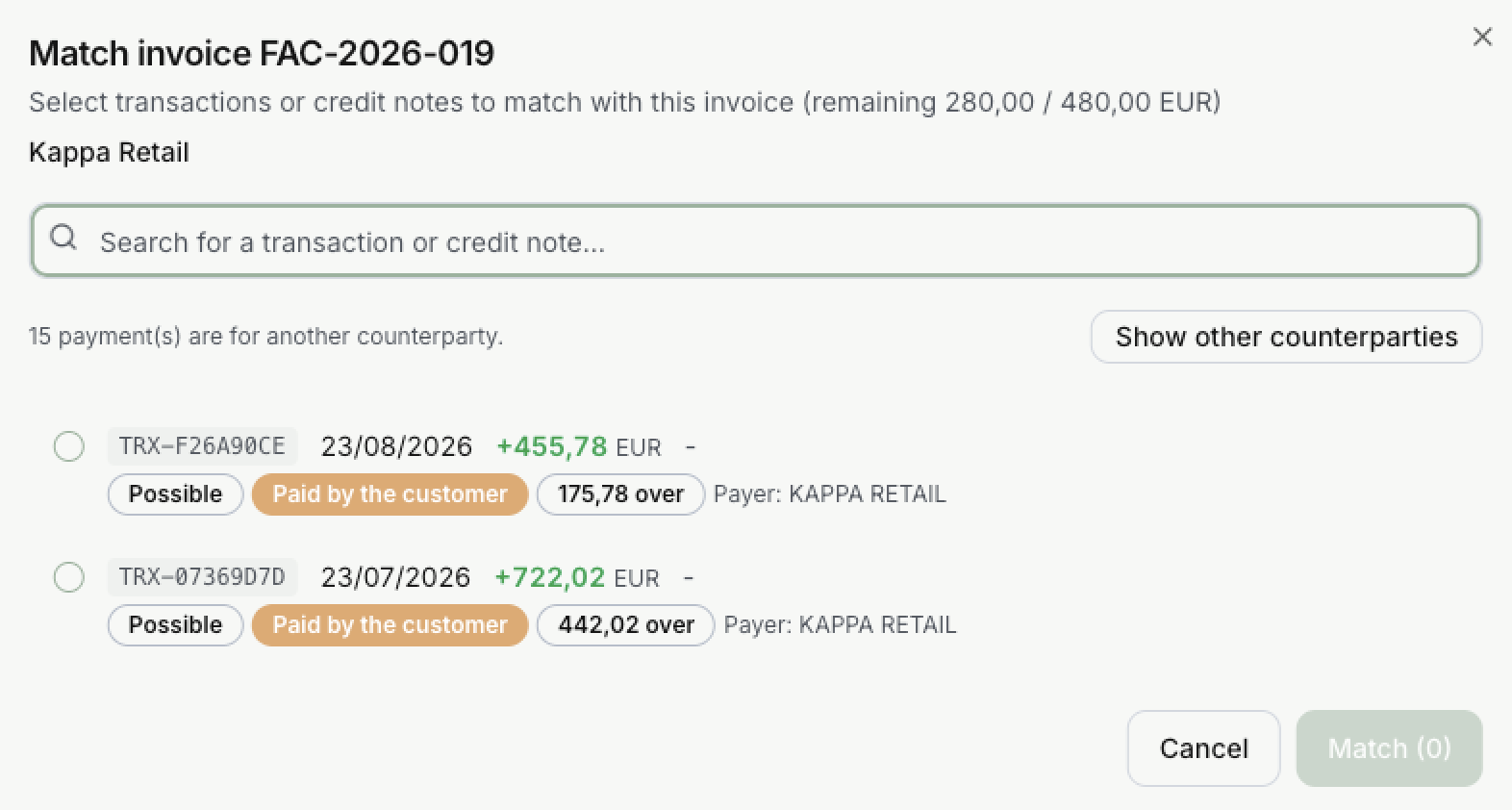
1. The window shows what is left to pay, out of the total: here **280,00 / 480,00 EUR**.
2. It lists the payments of this customer that are not fully used yet, best first. When Invunion is confident about the first one, it is already ticked.
3. Select one or more lines. For each one, **Allocated** is filled in: the smaller of what the invoice still asks and what is left on the payment. You can change it.
4. Select **Match (1)**. The number says how many lines you picked.
Each line has badges to help you choose: the level, such as Possible, who paid, such as Paid by the customer, and how the amount fits, such as **Exact**, **175,78 over** or **50,00 short**. See [Quick match](https://www.invunion.com/knowledge-base/invoices-issued/#quick-match) for each badge.
Can't find the payment?
- **Search for a transaction or credit note…** looks in the transaction code, the description, the references, the remittance information and the sender name. Type an amount, such as 280, to find a payment of exactly that amount.
- **Show other counterparties** adds the payments of other customers, for example when a parent company paid.
- **Show out-of-scope payments** adds the lines Invunion does not try to match. See [Scope](https://www.invunion.com/knowledge-base/transaction-status-scope/#scope-what-invunion-tries-to-match).
### Apply a credit note
The same window lists the open credit notes of the customer. Select one, then **Match**: the credit note lowers the **Amount due** of the invoice, without any money.
The invoice then shows Credit applied. It becomes Paid only with money received. See [Paid means paid in cash](https://www.invunion.com/knowledge-base/invoice-status-credit-notes/#paid-means-paid-in-cash).
## From the edit panel
Select on the line of the invoice. On the right, under **Linked transactions**:
- **Add a transaction…** picks a payment to match.
- **Allocated amount** shows the part of each payment that goes to this invoice. You can change it.
- **Apply a credit note…**, under **Credit notes**, uses a credit note.
Nothing is saved until you select **Save**. See [Summary and relationships](https://www.invunion.com/knowledge-base/invoices-issued/#summary-and-relationships).
## From the Counterparty overview
On the page of a customer, the **Invoices** table has a **Matching** column. A line with **No match** has a **Match** button: it opens the same window as Quick match. See [Overview page](https://www.invunion.com/knowledge-base/counterparty-overview/#invoices).
## Match a credit note
A credit note can be settled two ways:
- **Applied to an invoice**: it lowers what the customer owes. Use **Apply to an invoice…** in its edit panel.
- **Refunded**: you send the money back. Match the credit note to that money sent, with Quick match.
Only money sent is offered for a credit note. Money received is offered for an invoice.
## Example: an invoice paid in two parts
You send invoice **FAC-2026-019** to Kappa Retail, for **480,00 €**.
| Step | Status | Amount due | Settled | Recovery |
| --- | --- | --- | --- | --- |
| The invoice is created | Unpaid | 480,00 | 0,00 | 0% |
| You match a payment of 200,00 | Partially paid | 280,00 | 200,00 | 42% |
| The due date passes, 3 days ago | Partially paidOverdue · 3 days | 280,00 | 200,00 | 42% |
| You match a payment of 280,00 | Paid | 0,00 | 480,00 | 100% |
Invunion changes the status for you each time. Once the invoice is Paid, it is never overdue, and Quick match no longer shows on its line.
Both payments now show under **Linked transactions**, with **200,00** and **280,00** as allocated amounts.
 1. The window shows what is left to pay, out of the total: here **280,00 / 480,00 EUR**.
2. It lists the payments of this customer that are not fully used yet, best first. When Invunion is confident about the first one, it is already ticked.
3. Select one or more lines. For each one, **Allocated** is filled in: the smaller of what the invoice still asks and what is left on the payment. You can change it.
4. Select **Match (1)**. The number says how many lines you picked.
Each line has badges to help you choose: the level, such as Possible, who paid, such as Paid by the customer, and how the amount fits, such as **Exact**, **175,78 over** or **50,00 short**. See [Quick match](https://www.invunion.com/knowledge-base/invoices-issued/#quick-match) for each badge.
Can't find the payment?
- **Search for a transaction or credit note…** looks in the transaction code, the description, the references, the remittance information and the sender name. Type an amount, such as 280, to find a payment of exactly that amount.
- **Show other counterparties** adds the payments of other customers, for example when a parent company paid.
- **Show out-of-scope payments** adds the lines Invunion does not try to match. See [Scope](https://www.invunion.com/knowledge-base/transaction-status-scope/#scope-what-invunion-tries-to-match).
### Apply a credit note
The same window lists the open credit notes of the customer. Select one, then **Match**: the credit note lowers the **Amount due** of the invoice, without any money.
The invoice then shows Credit applied. It becomes Paid only with money received. See [Paid means paid in cash](https://www.invunion.com/knowledge-base/invoice-status-credit-notes/#paid-means-paid-in-cash).
## From the edit panel
Select on the line of the invoice. On the right, under **Linked transactions**:
- **Add a transaction…** picks a payment to match.
- **Allocated amount** shows the part of each payment that goes to this invoice. You can change it.
- **Apply a credit note…**, under **Credit notes**, uses a credit note.
Nothing is saved until you select **Save**. See [Summary and relationships](https://www.invunion.com/knowledge-base/invoices-issued/#summary-and-relationships).
## From the Counterparty overview
On the page of a customer, the **Invoices** table has a **Matching** column. A line with **No match** has a **Match** button: it opens the same window as Quick match. See [Overview page](https://www.invunion.com/knowledge-base/counterparty-overview/#invoices).
## Match a credit note
A credit note can be settled two ways:
- **Applied to an invoice**: it lowers what the customer owes. Use **Apply to an invoice…** in its edit panel.
- **Refunded**: you send the money back. Match the credit note to that money sent, with Quick match.
Only money sent is offered for a credit note. Money received is offered for an invoice.
## Example: an invoice paid in two parts
You send invoice **FAC-2026-019** to Kappa Retail, for **480,00 €**.
| Step | Status | Amount due | Settled | Recovery |
| --- | --- | --- | --- | --- |
| The invoice is created | Unpaid | 480,00 | 0,00 | 0% |
| You match a payment of 200,00 | Partially paid | 280,00 | 200,00 | 42% |
| The due date passes, 3 days ago | Partially paid Overdue · 3 days | 280,00 | 200,00 | 42% |
| You match a payment of 280,00 | Paid | 0,00 | 480,00 | 100% |
Invunion changes the status for you each time. Once the invoice is Paid, it is never overdue, and Quick match no longer shows on its line.
Both payments now show under **Linked transactions**, with **200,00** and **280,00** as allocated amounts.